Getting help
The fastest way to reach us is the support form inside the app. Fill it in, and you get an email confirmation right away. The team replies to the email address you used, so answers come straight back to your inbox.
What it is
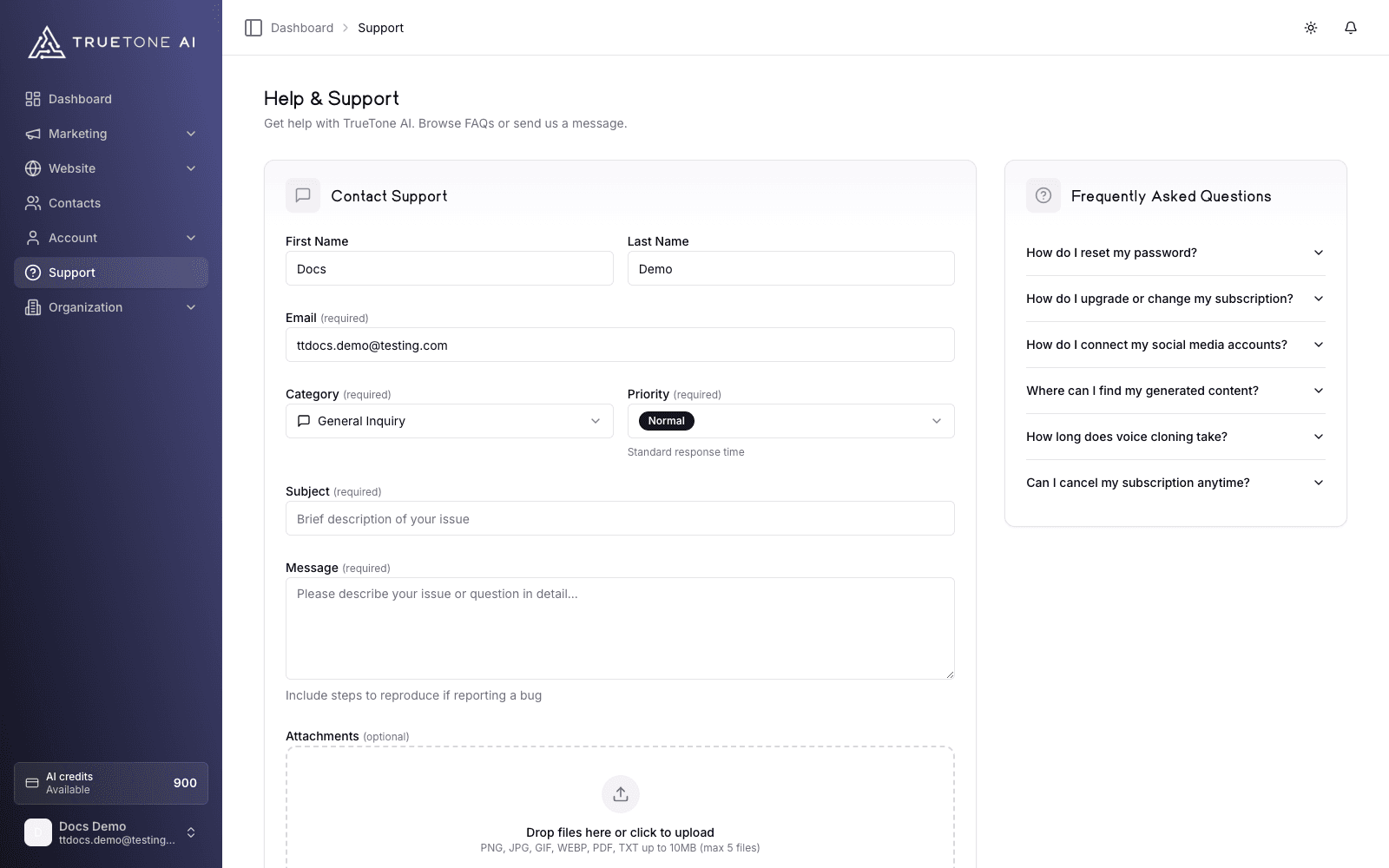
Support lives on the Help and Support page inside TrueTone. It has two parts. At the top is a short list of frequently asked questions you can expand for a quick answer. Below that is a Contact Support form that sends your question straight to the team.
When you send the form, three things happen behind the scenes. Your request is saved so nothing gets lost, a confirmation email lands in your inbox, and the team gets a notification with your details. You do not need to do anything else. Someone follows up by replying to the email address on your request.
Who it is for
Anyone with a TrueTone login can use it: loan officers on a personal plan and loan officers on a company seat alike. Billing questions, a feature that is not behaving, an idea you want to share, or a general question all go through the same form. Sales, marketing, product, and support teammates use this page to explain how a customer reaches the team and what to expect afterward.
Before you send, check the FAQ
The Help and Support page opens with a set of common questions you can expand right on the page, covering things like resetting your password, changing your subscription, connecting social accounts, and finding your generated content. If your answer is there, you are done in seconds. These docs also carry deeper answers in Troubleshooting, linked at the bottom of this page.
How to send a support request
Open Support
Sign in and open Help and Support from the sidebar. You need to be signed in, because the form is part of your account. Your name and email are filled in from your profile to save you typing. The email is editable if you want a reply to go somewhere else.
Choose a category and priority
Pick the category that best fits your question, then set a priority so the team knows how urgent it is. Normal is the default and is right for most requests.
Write a clear subject and message
Give your request a short subject and then describe what is going on in the message. The more specific you are, the faster the answer. If you are reporting something that is broken, include the steps that led to it.
Attach anything that helps (optional)
Drag in a screenshot or a file, or click to browse. Attachments are optional but often speed things up.
Send it
Choose Send Message. You see a confirmation on screen, and a confirmation email arrives in your inbox shortly after.
What to include
Choosing the right category and priority helps your request reach the right person quickly.
| Category | Use it for |
|---|---|
| Technical Issue | Something is broken or not behaving as you expect |
| Billing Question | Plans, payments, credits, invoices, or cancellations |
| Feature Request | An idea or something you wish the system did |
| General Inquiry | A question that does not fit the others |
| Other | Anything else |
| Priority | When to choose it |
|---|---|
| Low | General questions, no rush |
| Normal | Standard response time, and the default |
| High | Affecting your workflow |
| Urgent | Critical issue, blocking your work |
A few things make every request easier to answer:
- A specific subject line, so the team can see the topic at a glance.
- A message with real detail. A word or two is not enough; describe what you were doing, what you expected, and what happened instead.
- Steps to reproduce, if you are reporting a bug.
- Screenshots or files, when a picture would explain it faster than words.
Attachments
You can attach up to five files to a request. Each file can be up to 10 MB, and the supported types are PNG, JPG, GIF, WEBP, PDF, and plain text. Drop them onto the upload area or click to browse, and remove any you added by mistake before sending.
Attachments are optional. A screenshot of an error, a copy of an invoice, or a short document can often turn a back and forth into a single reply.
Where answers live
Right after you send
You see a success message on the page, and a confirmation email letting you know your request was received lands in your inbox. That confirmation is your record that the request went through. If you ever need to reach the team directly, the support address is:
support@truetone.aiGood to know
The support form is part of your account, so you need to be signed in to use it. If you cannot sign in at all, that is exactly the kind of thing to raise, but you may need to reach out from the sign-in help path first. See Troubleshooting for account access steps.
Your request is saved the moment you send it, before any email goes out. So even if a confirmation email is delayed, your question is already on the team’s list.
Set your priority honestly. It helps the team triage, so a genuinely blocking issue is not sitting behind a general question. Marking everything urgent slows the whole queue down.