Scheduling
The Scheduler is a calendar for your finished content: pick a post, choose which social accounts it goes to, and set a date and time. It publishes what you built, exactly as you approved it.
What it is
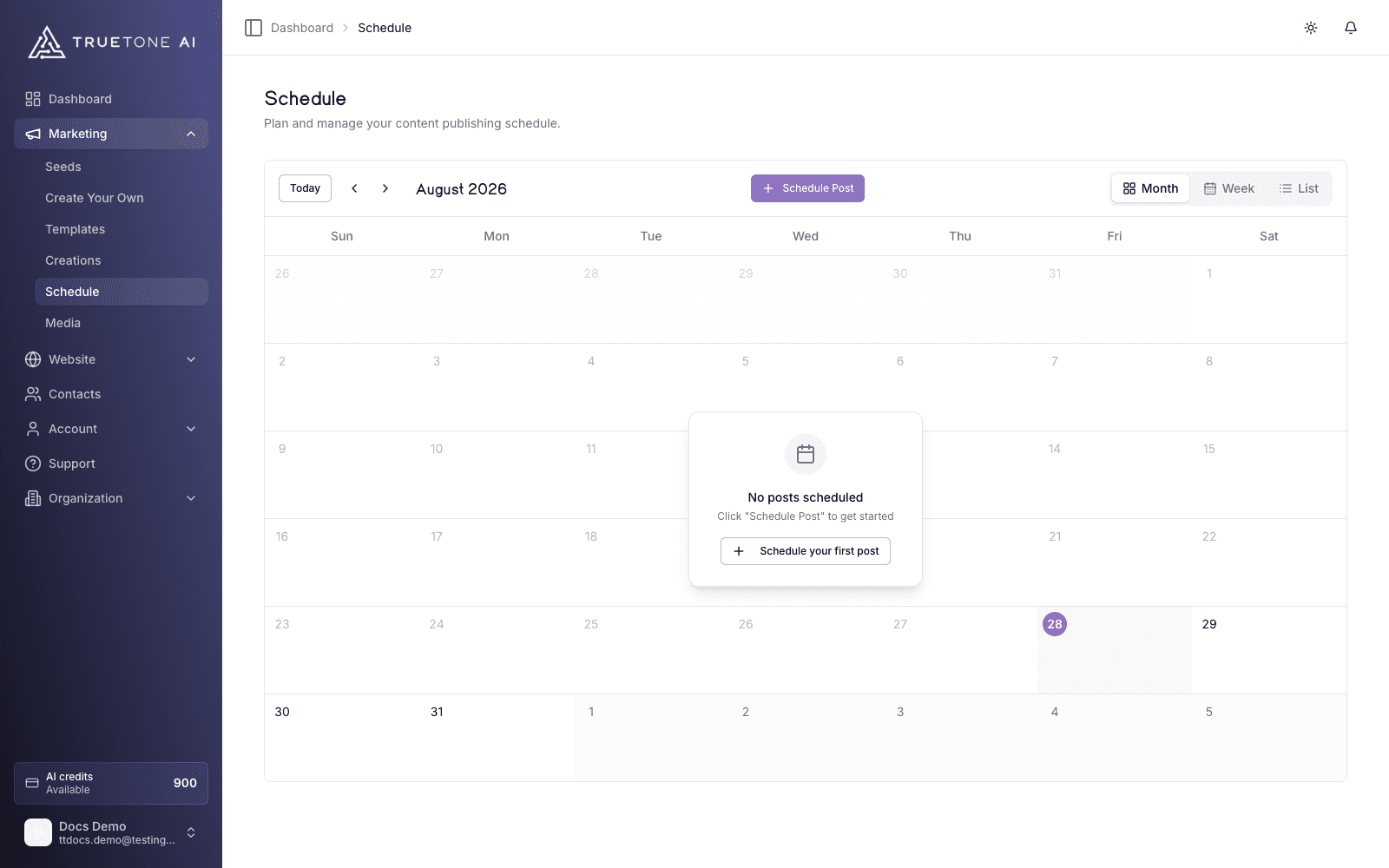
The Scheduler lives at Schedule in your dashboard. It shows a calendar of everything you have lined up, and it lets you put new content on the calendar to publish later, or to post right now.
You do not write content here. You schedule content you already created. When you open the scheduler, it pulls your finished creations across four Channels: Social posts, Video, Audiograms, and Blog. Video and Audiograms appear only once the video has actually been produced, so anything you can schedule is ready to go out.
Each scheduled item has one caption. That single caption is sent to every account you selected, because TrueTone uses one caption for every platform. You pick the accounts, you pick the time, and TrueTone publishes to each one at that moment.
Who it is for
Any loan officer who wants their content to go out on a schedule instead of by hand, and who wants a single place to see what is planned, what already posted, and what needs attention. Everything here is scoped to your own content and your own connected accounts.
Ways to view the calendar
You get three ways to look at what is on your calendar. Switch between them from the toggle in the top corner, and move through time with the arrows or the Today button.
| View | What it shows |
|---|---|
| Month | The whole month at a glance. Best for spotting gaps and busy stretches. |
| Week | One week, broken out by hour, for finer control over timing. |
| List | A clean, scrollable rundown of what is coming up, sorted by date. |
In Month and Week view you can drag a post to a new slot to reschedule it. List view is read-focused; open any row to make changes. On smaller screens, Month and List are always available, and you can swipe left or right to move between periods.
How to schedule a post
Open the scheduler
Go to Schedule and click Schedule Post. A picker opens with all of your finished content. Search by keyword, filter by type (Blog, Social, Video, Audiogram), or sort by newest, oldest, or title.
Pick the content
Choose the creation you want to publish. The scheduler loads its title, caption, and any image or video so you can see exactly what will go out.
Choose where it goes
Select one or more of your connected social accounts. The one caption you see is shared to each account you pick. Only accounts that can accept this kind of content appear, so a vertical video, for example, lists just the platforms that support it. A character counter flags any account whose limit your caption exceeds, but it never blocks you and never rewrites your words: over-limit platforms may reject the post while the rest still publish.
Set the date and time
Pick a day on the mini calendar and a time with the time picker. Shortcuts for Today and Tomorrow are built in, and times are shown in your local timezone. You cannot choose a moment in the past.
Schedule or post now
Click Schedule Post to save it for the time you set, or Post Now to publish immediately to the selected accounts. A progress panel shows each account as it publishes, with a link to the live post when it succeeds.
Some accounts need one more step before they can be a target. Facebook, Instagram, LinkedIn, YouTube, and Google Business only appear once you have connected the account and confirmed which channel, page, or business location to use. Until you finish that, they stay hidden from the scheduler. Set it up under Account, on the Social tab. See Social connections.
Rescheduling, editing, and cleanup
In Month or Week view, drag a post to a different slot to move it. Month view keeps the original time and changes the day; Week view changes both the day and the hour. You cannot drop a post into a time that has already passed.
Click any scheduled post to open its details. From there you can edit the caption, image, or time, or delete it. A post that is still waiting to publish can be changed freely. Once a post has published you can no longer edit it, but you can repost it, which loads its content into a fresh calendar entry for a new time.
Reading the calendar
Each post on the calendar carries a status so you can tell at a glance where it stands:
| Status | What it means |
|---|---|
| Scheduled | Saved and waiting to publish at the time you set. |
| Posted | Published to the selected accounts. A link to each live post is available in its details. |
| Failed | A platform rejected the post. Open it to see why and to retry. |
| Cancelled | The post was pulled before it published and will not go out. |
A post can publish to some accounts and be rejected by others. When that happens, its details list a live link for every account that went out and an inline note for any that did not, so you always know exactly what published where.
An empty calendar shows a Schedule your first post prompt so you always have a way in.
Retrying a failed post
If a platform rejects a post, it lands with a Failed status instead of quietly disappearing. Open the post to read the error, then decide what to do.
- Retry sends the same post to the platform again. It is available when the post actually reached the platform the first time. The post moves back to a waiting state while it tries again.
- Edit and Reschedule is the path when you want to change something first, or when a post never reached the platform at all. Fix the time or caption, pick your accounts, and send a fresh attempt.
- Delete removes it if you would rather start over.
Nothing is retried automatically, and nothing is rewritten for you. A retry sends the exact content you already approved.
Sharing a blog post
Blog works a little differently from the other Channels. You do not post the article itself to social; you share a link to it. When you schedule a blog, the scheduler builds a share caption with a link back to the live blog post and lets you edit that caption before it goes out. The blog page is already public on your site, so the link works the moment you share it.
A Reset to Default control rebuilds a plain caption from your post title and a short excerpt. It is a fixed template, not an AI rewrite.
Good to know
The Scheduler is a scheduler, not a queue. Every post has an explicit date and time that you set. It does not auto-fill open slots, and it does not regenerate or rewrite captions with AI at schedule time. What you approve is what publishes.
Email is not scheduled here. Email creations are export-only, so they never appear in the scheduler and TrueTone never sends an email on your behalf.
Two more things worth knowing:
- You need at least one connected account. If your platform list is empty, connect your social accounts first; the scheduler links you straight to the right place.
- Times are yours. Everything on the calendar is shown and saved in your own local timezone, so what you see is what publishes.