Signing up and signing in
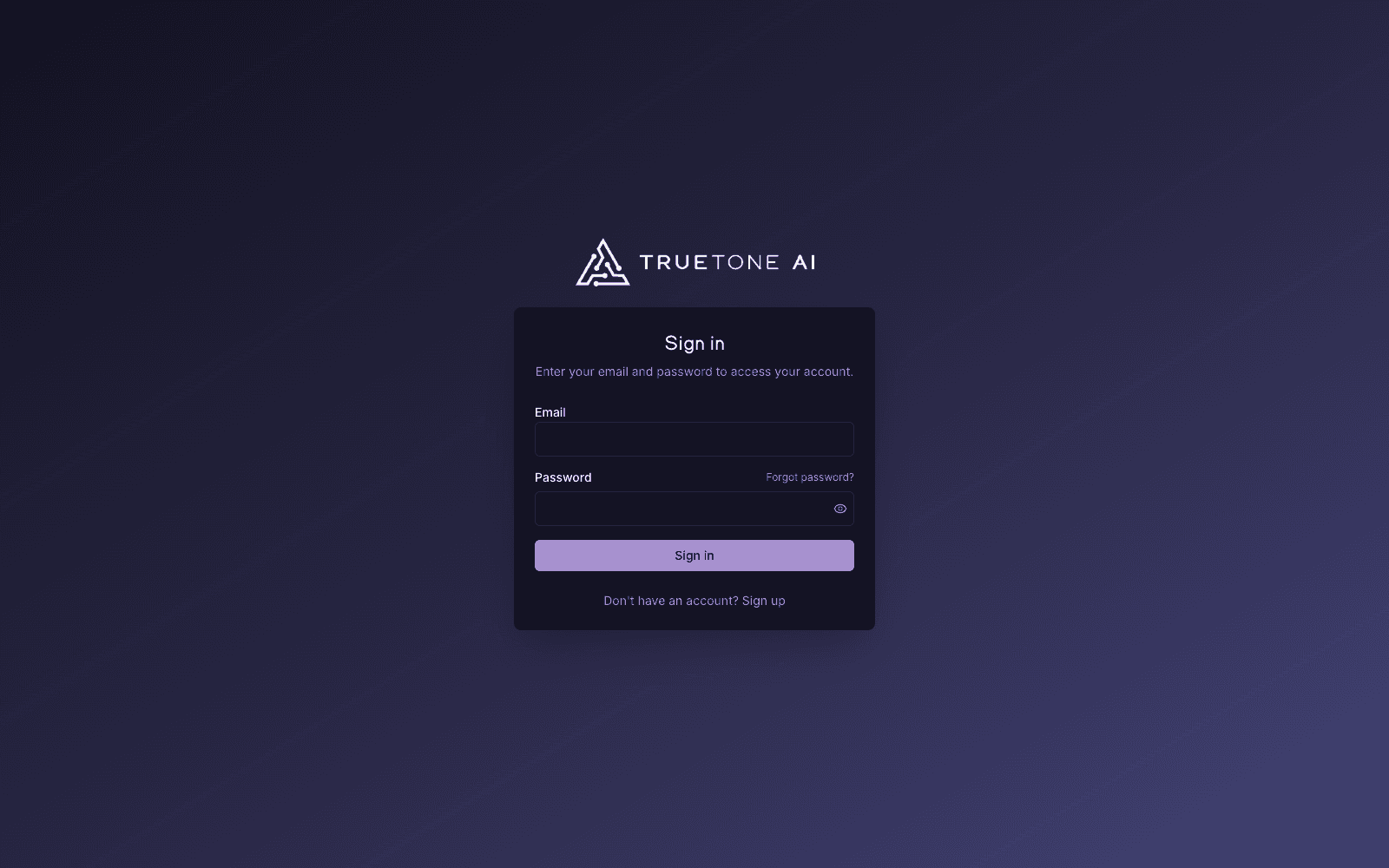
Create your account with your name, email, and a password, confirm your email, and you are in. Sign back in any time with the same email and password. Forgot it? Reset your password right from the sign-in screen.
What it is
This is how you get into TrueTone: creating an account for the first time, signing in on later visits, and getting back in if you forget your password. Everything happens on the sign-in and sign-up screens at truetone.ai, and it takes a minute or two.
Today, the way in is your email and a password. When you sign up, TrueTone sends a verification link to your inbox so we know the email is really yours. Once you confirm it, your account is active and you go straight to your dashboard.
Who it is for
- New loan officers creating a personal TrueTone account for the first time.
- Returning users signing back in day to day.
- Loan officers added to an organization who receive an invite instead of signing up on their own (see the note below).
- Sales, marketing, and support teammates who need to describe the sign-in experience accurately.
Creating your account
Enter your details
On the sign-up screen, type your first name, last name, email address, and a password. Passwords must be at least 8 characters. A show and hide control lets you check what you typed before submitting.
Confirm your email
After you submit, TrueTone sends a verification link to your email and shows a “Check your inbox” screen. Open the email and tap the link to activate your account. If it does not arrive, check spam and promotions first, then use the resend button on that screen to send a fresh link.
You are in
Clicking the verification link signs you in automatically and lands you in TrueTone. The first time, we walk you through a short setup so your content sounds like you. After that, you go straight to your dashboard.
Confirming your email is required before your account is fully active. If you try to sign in before clicking the verification link, TrueTone sends you back to the “Check your inbox” screen so you can resend it and finish. Verification links expire after a while, so if yours has gone stale, just request a new one.
Signing in
On a later visit, go to the sign-in screen, enter the email and password you signed up with, and select Sign in. A show and hide control lets you confirm your password before submitting. When it checks out, you land on your dashboard. You stay signed in on that device for about a week before you need to sign in again.
If your email is not confirmed yet, signing in takes you to the “Check your inbox” screen instead, where you can resend the verification link.
A one-time email sign-in link and Google sign-in are part of the foundation of the TrueTone System, but they are not yet offered as buttons on the sign-in screen. For now, email and password is the way in. If you forget your password, use the reset link described below rather than waiting for another option.
If you forgot your password
You do not need to contact anyone to get back in. Reset your password yourself from the sign-in screen.
Request a reset link
Select Forgot password? on the sign-in screen, enter your email, and choose Send reset link. For your protection, TrueTone shows the same confirmation whether or not an account exists for that address, so the message never reveals who has an account.
Check your email
If an account exists for that email, a reset link arrives in your inbox. Open the email and tap the link. Reset links expire, so if yours no longer works, request a new one from the same screen.
Set a new password
Choose a new password of at least 8 characters, type it twice to confirm it, and save. TrueTone returns you to the sign-in screen so you can sign in with the new password.
Invited by your organization
If your company added you as a seat, you do not create your own account. Instead, you receive an invite email with a link to set your password and confirm your details. Use that link to get in the first time, then sign in normally afterward.
Signing out
When you sign out, TrueTone shows a short confirmation that your session ended securely, with a button to log back in whenever you are ready. Signing out on one device does not sign you out everywhere else.
Good to know and limits
A few things worth keeping in mind:
- Passwords are at least 8 characters. Longer is better. See Account security for tips on keeping your account safe.
- One email, one account. Your email address is your identity in TrueTone, so use an address you check regularly.
- Verification and reset links expire. If a link no longer works, request a fresh one from the relevant screen. Nothing is lost.
- Still stuck? If you cannot get in after trying these steps, reach out through Support. Enterprise seats should also loop in their organization admin.