API keys and AI assistant connections
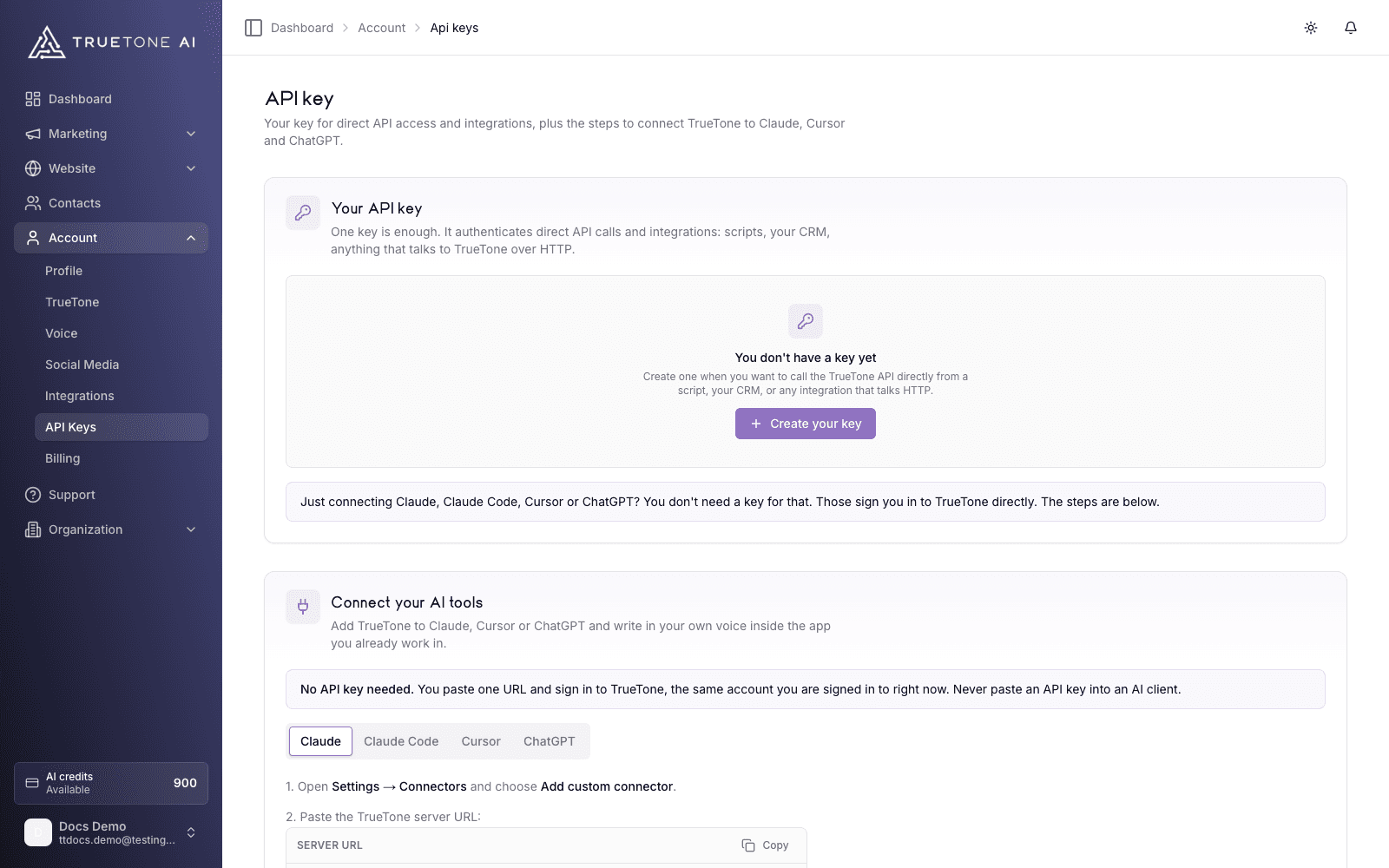
Open Account, then API Keys. That one page does two jobs: it walks you through connecting TrueTone to the AI assistant you already work in, and it manages the API key that lets your own software call the TrueTone API directly. Everything either one produces is written in your voice and spends your regular credits.
What it is
There are two ways for outside software to reach your TrueTone account, and they authenticate differently on purpose.
The TrueTone Connector is for AI assistants such as Claude and Cursor. You paste one server URL into the assistant, it opens a TrueTone sign-in, and you approve what it may do on a consent screen. No key is involved at any point, and you should never paste an API key into an AI assistant. Once connected, you can ask your assistant to pull up your seeds, rewrite text so it sounds like you, draft content, or schedule posts, all without leaving the conversation.
The TrueTone API is for software you run yourself: a script, your CRM, or any integration that talks HTTP. Those calls are authenticated by an API key, sent as a bearer token on every request. One key is enough for most people, though you can create more, each with its own name and its own grants.
Both routes are governed by the same Capability Groups: named bundles of permissions you grant on the consent screen or when you create a key. A connector or key can only ever do what you granted it, and nothing more.
Who it is for
Any loan officer who wants TrueTone available inside the AI assistant they already use, and anyone wiring TrueTone into their own tools. The connector setup takes a couple of minutes and needs no technical background. The API key side is for whoever maintains the script or integration on your behalf.
Connect your AI assistant
No API key is needed for any of these. You paste one URL, sign in with the same TrueTone account you use in the dashboard, and approve the consent screen.
Claude
- In Claude, open Settings, then Connectors, and choose Add custom connector.
- Paste the TrueTone Connector URL:
https://mcp.truetone.ai/api/mcp - Claude opens a TrueTone sign-in. Sign in with your usual account.
- Approve the consent screen. TrueTone then appears in the connectors menu in any new chat.
Using a different assistant? Any client that connects to this kind of server over HTTP works with the same URL and handles the sign-in itself.
What each Capability Group grants
When you approve a connector or create a key, you choose from the same set of Capability Groups. Each one is a plain promise about what the holder can do.
| Capability Group | What it grants |
|---|---|
| Read access | Read your seeds, the images in your media library, your generated content, your credit balance, and whether your TrueTone Profile is ready |
| Voice transform | Rewrite text you provide so it sounds like you |
| Content creation | Save new seeds, add images to your media library, write or rewrite emails, blog posts, social posts, and video scripts in your voice, and draft replies to reviews and comments. Writing and drafting spend your credits; adding seeds and images does not |
| Audio and video | Create audiograms in your voice: a written script, audio in your cloned voice, and timed captions. Creating spends your credits; rendering the finished video stays in the dashboard |
| Scheduling | Read your posting schedule, see which of your already-connected social accounts you can post to, add posts to the schedule, and remove them. Scheduling spends no credits |
| Organization | Read your organization’s seat roster and what each seat is using |
Your role shapes what you can grant. If you run your own account or hold a seat on a company plan, you can grant the first five groups. The Organization group is reserved for organization admins, so it only appears as an option if you are one. A key or connector can never hold more than your role allows, and the picker only shows the groups you can grant.
Create an API key
Open the create dialog
On the API Keys page, choose Create your key (or Rotate key if you already have one and want a fresh secret). Have somewhere safe to paste the key ready before you start.
Name it and choose what it can do
Give the key a name up to 80 characters; leave it blank and it is called “Default”. Only you and your org admins see the name. Then pick its Capability Groups. Everything your role can grant starts checked, and you can narrow the key down to exactly what its job needs. A key must hold at least one group. The choice is fixed at creation: to change what a key can do, you create a new one.
Copy the key immediately
The full key is shown exactly once, right after it is created. TrueTone stores only the first few characters so you can recognize it in a list; the rest is hashed the moment it is minted and can never be shown again. Copy it into your password manager or your integration’s secret store before closing the dialog.
Use it as a bearer token
Every call to the TrueTone API carries the key in an Authorization: Bearer header. Keep it in an environment variable or a secret store, never in the code itself. Anything that holds the key can spend your credits.
Rotate or revoke a key
Rotating is the routine refresh. It mints a replacement with the same name and the same Capability Groups, and the old key keeps working for 24 hours so you can move your integrations across at your own pace. Nothing breaks during the overlap, the page shows exactly when the old key stops, and you can end the overlap early once you have switched over.
Revoking is the emergency stop. The key dies immediately, with no grace window and no undo; anything still calling the API with it starts failing within seconds. Reach for it when a key has leaked, and create a new key afterward. The rotate dialog offers the revoke path directly for exactly that situation.
Rotating or revoking a key never touches your AI assistant connections. Claude, Claude Code, Cursor, and ChatGPT sign in with your TrueTone account, not a key, so they keep working. To disconnect an assistant, remove the TrueTone Connector inside that app’s settings.
Sending a photo from chat
Assistants cannot push an image file into your account directly, so TrueTone gives them a hand-off. Ask your assistant to add a photo to your media library and it replies with an upload link. Open the link (it works well on a phone, where the photo usually is), pick the image, and you are done: the image lands in your media library and you return to the conversation. Each link is good for one upload and expires on its own, so ask for a fresh one if a link has gone stale.
How this shows up on your bill
Work done through a connector or key spends the same credits at the same prices as work done in the dashboard; there is no separate meter. On the Usage and Billing page, every line in your credit activity says where it came from, and a platform filter narrows the feed to In-app, API, or Connector (the lane your AI assistant connections use), so you can always see what your connected tools are spending. The API Keys page adds a per-key view: each key shows the credits spent and calls made through it, which is how you spot an integration that is busier than you expected.
Good to know
Treat an API key like a signed blank check. It is shown once, and anything that holds it can generate content and spend credits as you. If you are not sure a key is still private, rotate it; if you know it leaked, revoke it.
Scheduling through an assistant only ever uses social accounts you already connected in the dashboard. Connecting a new account is an in-app step, and no Capability Group can perform it for you.