Website theme
The Theme workspace is where you set your website’s visual style. You pick a ready-made theme, then fine-tune your colors and fonts. There is no draft step, so every change publishes to your live site the moment you save.
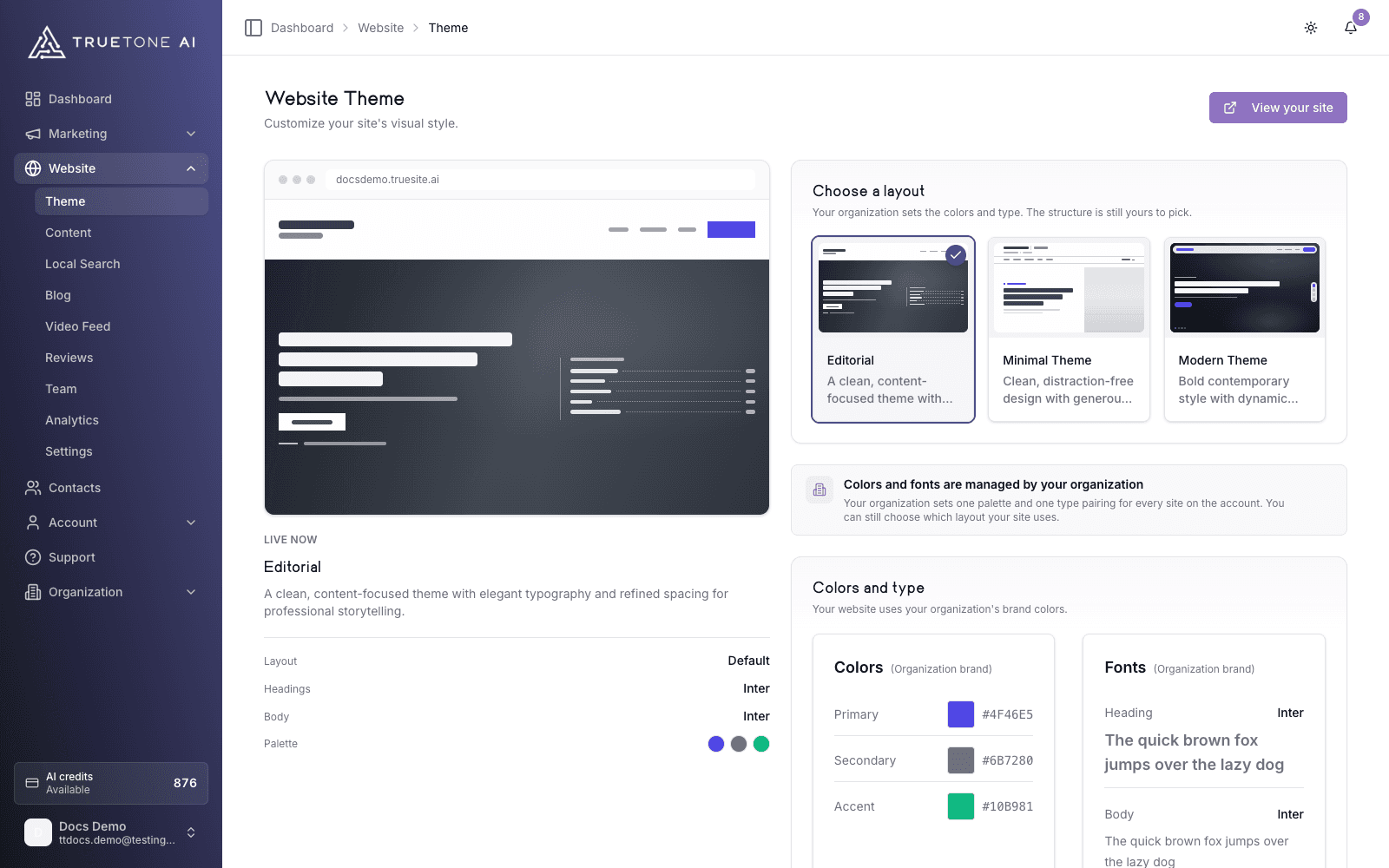
What it is
Theme is the styling workspace for your website. You reach it from the Website section of the dashboard, under Theme. It controls how your site looks rather than what it says, and it is built to feel like choosing a wardrobe rather than editing a stylesheet.
Two things live here. First, a gallery of themes: professionally built visual styles, each with its own layout and character, from clean and minimal to bold and high impact. Second, a color and font editor where you set the specific brand colors and typefaces your site uses.
The theme previews are live. As you adjust your colors and fonts, each style in the gallery updates to show how your site would look, and the font examples redraw in the typefaces you pick. What you see is what your visitors get.
Who it is for
Any loan officer who wants their site to match their brand without touching design tools or code. The site already ships styled and ready, so this workspace is about making it feel like yours, not building a look from scratch.
If you are on an enterprise seat, your colors and fonts are set by your organization so every officer’s site stays on brand. The workspace tells you when that is the case, and you can still browse the theme gallery.
What you can theme
| Element | What you control |
|---|---|
| Theme | The overall visual style and layout. Choose one from the gallery. Each theme has a short description of the feel it creates. |
| Colors | Three brand colors: Primary (buttons, links, and key elements), Secondary (supporting text and borders), and Accent (highlights and calls to action). |
| Fonts | Two typefaces: Heading (titles and headlines) and Body (paragraph text). Pick from a large, searchable font library, with a live preview for each. |
Background and text colors are set automatically by the theme to keep your site readable and high contrast on every screen. You do not choose those directly, which is why your text always stays legible against your chosen palette.
How to use it
Open the Theme workspace
In the dashboard, go to the Website section and choose Theme. You will see the theme gallery at the top and the color and font editor below it.
Choose a theme
Browse the gallery and select the style that fits you. Each card shows a small live preview, the theme name, and a one-line description of the mood it sets. Selecting a theme marks it with a check and updates the previews.
Set your colors and fonts
By default your site uses your saved brand colors and fonts. To customize them for this website, turn on the Override brand settings toggle. Then pick your Primary, Secondary, and Accent colors, and choose your Heading and Body fonts. Every choice previews as you make it.
Save and go live
When you have changes, a save bar appears at the bottom. Choose Save to publish. The first time you save theme changes, a short confirmation reminds you that the update is immediate. Use the View your site button in the page header to open your live site and confirm the result.
Brand settings and website overrides
Your colors and fonts start from your brand settings, which is your account-level brand identity. The Theme workspace lets you either keep that brand or set colors and fonts just for this website. How much you can change depends on your seat.
Personal or team seat
Your brand colors and fonts are applied automatically. Leave the Override brand settings toggle off and your site simply follows your brand.
Turn the toggle on when you want this specific website to differ. The color pickers and font selectors unlock, and your custom choices are saved as overrides for this site only. To go back to your brand later, turn the toggle off and save. You will be asked to confirm, and saving removes the custom colors and fonts and restores your brand.
You can update the brand itself from your account, and those values flow into the site whenever you are not overriding.
Good to know
Changes go live immediately. Your public site has no draft or preview stage, so saving a theme change updates the site your visitors see right away. A one-time reminder appears the first time you save.
Unsaved changes are safe to abandon. If you experiment and change your mind before saving, use Reset in the save bar to discard everything and return to your last saved state. Nothing publishes until you save.
Colors and fonts flow beyond your website. Your brand colors and fonts are part of your broader brand identity, so keeping them consistent here helps the rest of your content feel like one voice.