Notifications
TrueTone keeps a running record of the things that happen in your account, from finished content to failed posts to billing alerts. You read them in the app, and you decide which ones also reach you by email.
What it is
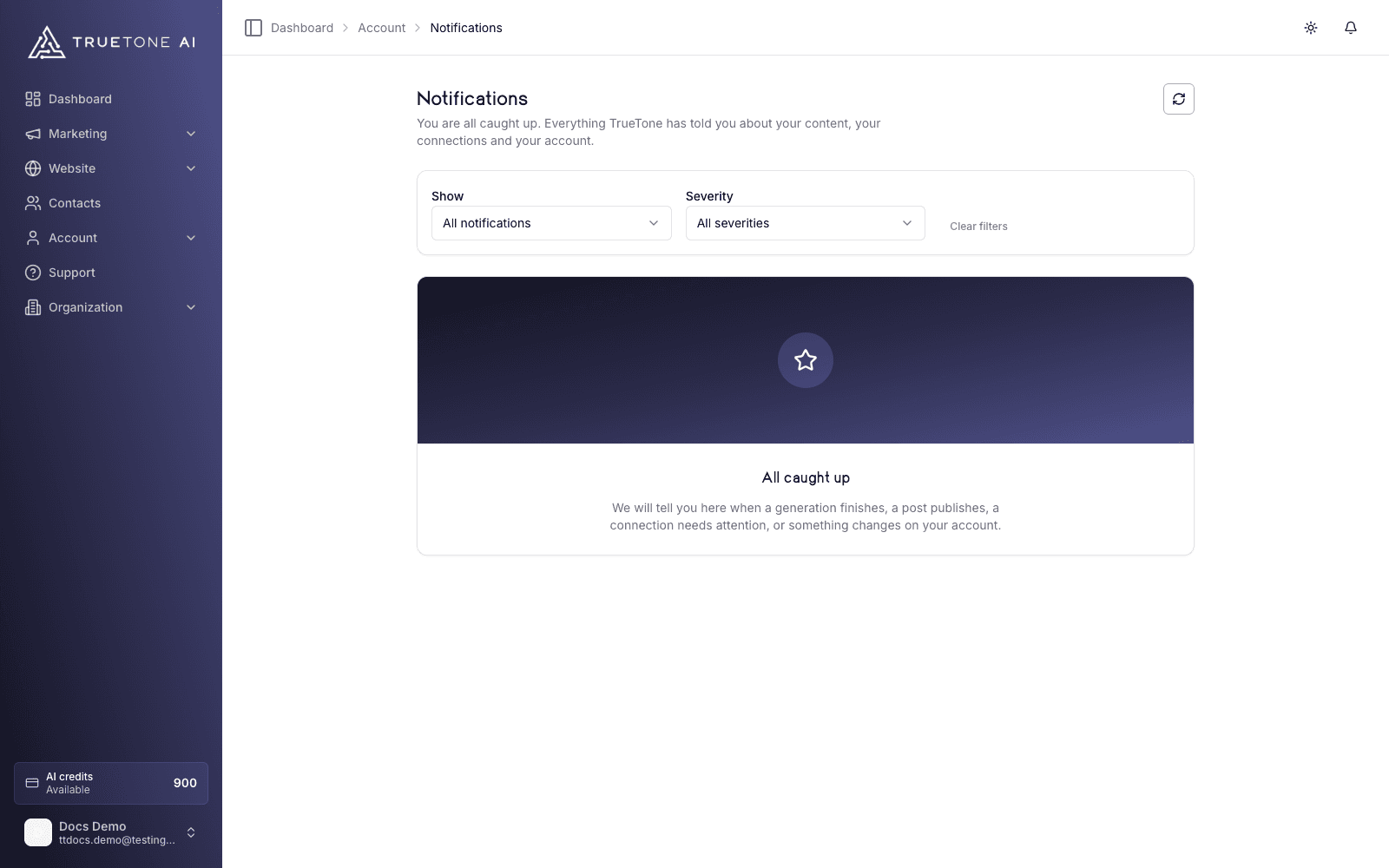
Notifications are short, timestamped alerts about activity on your account. They show up in two places: a bell in the top bar of your dashboard, and a full Notifications page under Account.
New notifications appear in real time. You do not need to refresh the page to see them arrive. Each one has a title, a short message, a colored severity marker, a time, and sometimes a View button that takes you straight to whatever it is about, like the finished blog or the integration that failed.
The bell and the full page draw from the same record, so nothing you see in one is missing from the other. The bell is your quick glance; the page is the complete history with filters and controls.
Who it is for
Every loan officer. Notifications are personal to you, scoped to your own account and your own content. You control exactly which kinds you receive and whether they also arrive by email.
The bell in the top bar
The bell shows a badge with your unread count. Open it for a compact list of your most recent unread notifications, up to five at a time. From there you can:
- Click View on any item to jump to what it references.
- Mark a single notification as read with the check button.
- Click Mark all read to clear the badge.
- Click See all notifications to open the full page.
When the badge would climb past 99, it shows 99+. When you are caught up, the bell reads “All caught up.”
The full Notifications page
Open Account, then Notifications, for the complete list. Notifications are grouped by day (Today, Yesterday, then by date) so recent activity is easy to find. Here you get the full set of controls.
Filter to what you want
Use the two filter menus to narrow the list. The first filters by kind: all, unread only, read only, or a specific type such as published content, approvals, or failed social posts. The second filters by severity: errors, warnings, info, or success.
Mark things read
Mark any single notification as read, or use Mark all read to clear everything at once. Read notifications stay in your history; they just stop counting toward your unread badge.
Dismiss what you are done with
Remove a notification you no longer need. Dismissing it takes it out of your list for good.
Load more history
The page loads your notifications in batches of 20. Click Load more notifications to pull in older ones.
Choosing what you are notified about
Your notification settings live under Account, then Profile, in the Notifications section. There are three groups of controls.
Notification categories
Five toggles group every alert into a category. Turning one off silences that whole category, both the in-app notifications and their emails.
| Category | What it covers |
|---|---|
| Content | Published blogs and posts, plus new seeds added to your library. |
| Generation | When AI content you requested finishes generating. |
| Integrations | Social publishing results and webhook or integration errors. |
| Approvals | Approval requests and decisions in your workflow. |
| Account | Billing, subscription, contacts, and system alerts. |
Notification emails
Separately from the categories, a single Email Me Notifications toggle controls whether the categories above also reach you by email. Turn it off and every notification stays in-app only. Delivery timing is automatic; there is no cadence to configure.
Your in-app notification center stays complete and current either way. The toggle only changes email, never what you see in the app.
Email subscriptions
A few email lists stand on their own, separate from the categories above. Each has its own switch:
- New Lead Notifications email you when a new lead comes in through your website.
- Contact Form Submissions email you when someone submits a contact form.
- Daily News Digest sends a daily summary of industry news.
- Webhook Failure Alerts email you when an integration webhook fails.
What triggers a notification
You do not create notifications yourself; the system raises them when something happens. Common triggers include:
- A piece of content finishes generating.
- A blog or post is published to your website.
- A social post publishes successfully, or fails on a platform.
- An integration or webhook you set up fails to deliver.
- An approval is requested from you, or a decision is made on your content.
- A new contact or lead lands in your account.
- A billing, subscription, or credit event needs your attention.
Whether each one reaches you, and whether it also emails you, depends on the category toggles and the email toggle you set above.
Unsubscribing from emails
Every notification email includes a one-click unsubscribe link. Use it to stop a single category of email, or to opt out of all marketing and notification email at once. The change is applied immediately and mirrors back to your notification settings.
Important account and security email, such as password resets and billing-critical notices, always reaches you. Those messages do not carry an unsubscribe link and are never turned off, so you never miss something that affects access to your account.
Good to know
The notification center is the complete, live record of your account activity. Even with notification emails turned off, everything still shows up in the app, so choosing fewer emails never means missing information.
To cut down on noise, some high-volume alerts (like a burst of finished generations) are grouped so you get a summary rather than one ping per item.
- Notifications are private to you. They only ever show your own activity.
- Dismissing a notification is permanent; if you might need the reference later, click through to the item first.
- Turning a category off is the cleanest way to stop both the in-app alert and its email in one move.