Media library
The Media library is your personal store for images and video. Upload a file once, give it a name and tags, and it is ready to drop into any blog post, social image, audiogram, website page, or team photo without uploading it again.
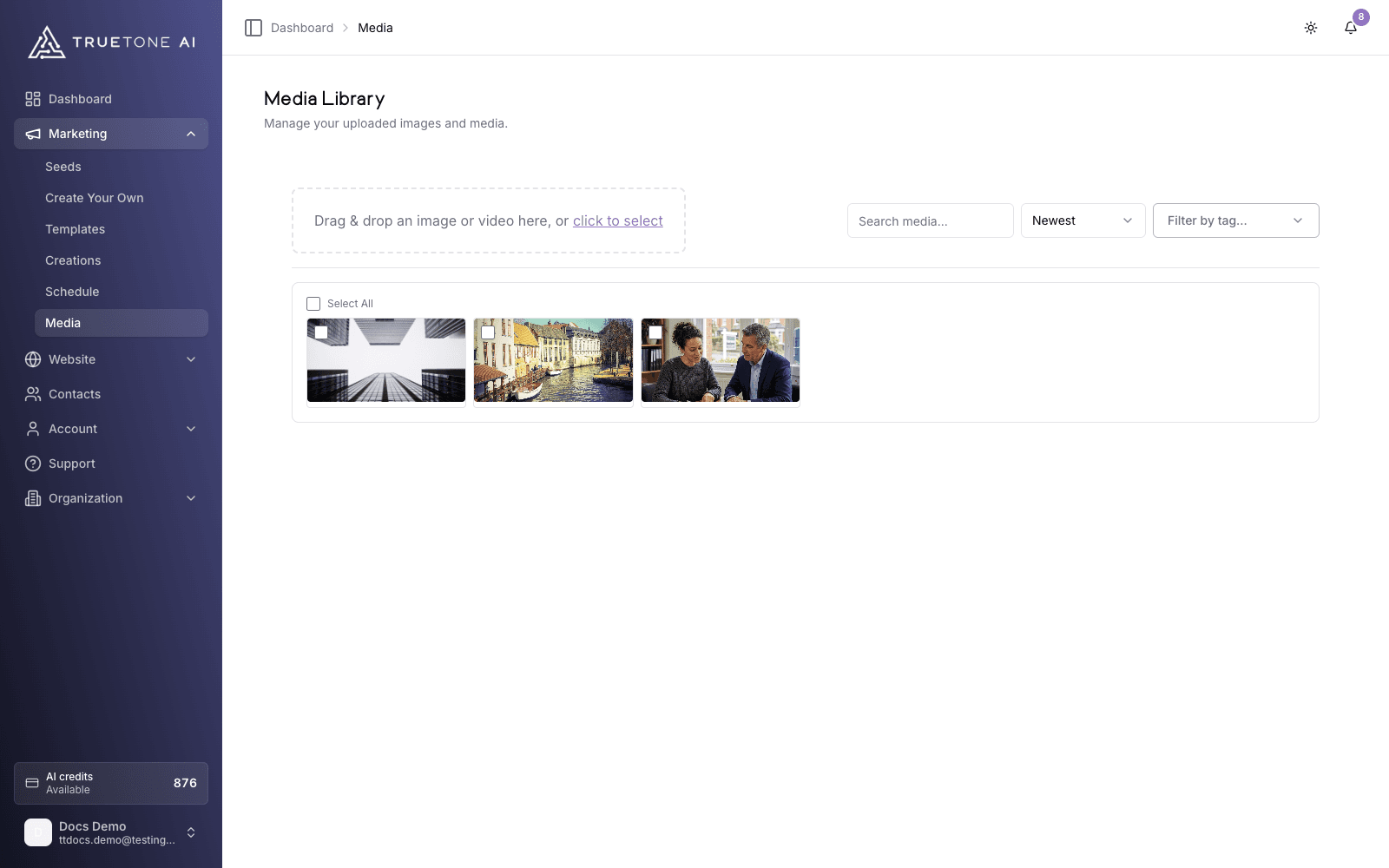
What it is
The Media library holds the images and video you have uploaded to the TrueTone System. Each item keeps a name, an optional description, and any tags you add, so a growing collection stays easy to search rather than turning into an unlabeled pile.
Everything here is reusable. Whenever you reach for an image inside the TrueTone System, an image picker opens with two tabs: Stock (a shared library of ready-to-use images) and My Uploads (everything you have added here). That same picker appears when you set a blog or social image, choose an audiogram background, add a photo to a seed, or update your website branding and team photos, so one upload serves your whole workflow.
Who it is for
You, the loan officer, use this to keep your own headshots, property photos, branded graphics, and recorded video in one place. Your sales and marketing teammates will recognize it as the source that feeds imagery into every Channel and into your website.
What you can upload
The library accepts common image and video formats, up to 200 MB per file.
| Type | Formats |
|---|---|
| Images | JPEG, PNG, WebP, GIF |
| Video | MP4, MOV, WebM |
Video you record in the Video Channel also lands in this library automatically, so recordings and manual uploads live side by side.
Uploading a file
Open the Media library
Go to the Media library in your dashboard. The upload area sits across the top of the page.
Add your file
Drag an image or video onto the upload area, or click it to browse your device. You can also start an upload straight from the image picker whenever you are adding an image somewhere else.
Name it and tag it
An upload window opens with a preview. Give the file a clear name, add a short description if you want one, and enter tags separated by commas (for example: headshot, branded, 2026). Good tags now save time later.
Upload
Select Upload. The file is added to your library and is immediately available in the picker everywhere images are used.
Organizing and finding media
Three controls above your library keep a long collection manageable:
- Search matches the names and descriptions you have given your files.
- Tags filters the library down to the tags you pick.
- Sort orders items by newest, oldest, name A to Z, or name Z to A.
Select any item to open its detail panel, where you can rename it, edit its description, add or remove tags, download the original, or delete it. The panel also shows useful details at a glance: file size and dimensions for images, and duration, aspect ratio, and resolution for video.
Working in bulk
When you need to act on several files at once, use the checkboxes on each item. Select-all sits at the top, and holding Shift while you click selects a whole range. Once one or more items are selected, a bar appears with three actions:
| Action | What it does |
|---|---|
| Delete | Permanently removes the selected files after you confirm |
| Download | Packages the selected files into a single ZIP and downloads it |
| Tag | Adds one or more tags to every selected item at once |
Tagging is always additive. Adding tags in bulk, or on a single item, never removes tags that are already there. To take a tag off a file, open its detail panel and remove it there.
Good to know
Deleting media is permanent. A deleted file cannot be recovered, and any content or website spot that pointed at it will lose that image. If a file is used on a live website page, replace it there before you delete it.
Your library is private to you. Other loan officers on your team do not see the files you upload here. Organization administrators have organization-wide oversight of media as part of normal account governance. See Data isolation and Roles and permissions for how that separation works.
Website images are live the moment you use them. Because your hosted website has no separate draft stage, swapping an image on a page publishes that change right away. Preview a page after you update its imagery.