Connecting social accounts
Connect a network once and TrueTone can schedule your approved posts straight to it. For a few networks you also pick which page or profile to post to, and that same choice is what your website pulls reviews from. Nothing is ever posted without your say-so.
What it is
Connecting a social account links a network you already use (Facebook, Instagram, LinkedIn, and others) to your TrueTone account. Once a network is connected, the Scheduler can send the captions you approve out to it automatically, so you are not copying and pasting into each app.
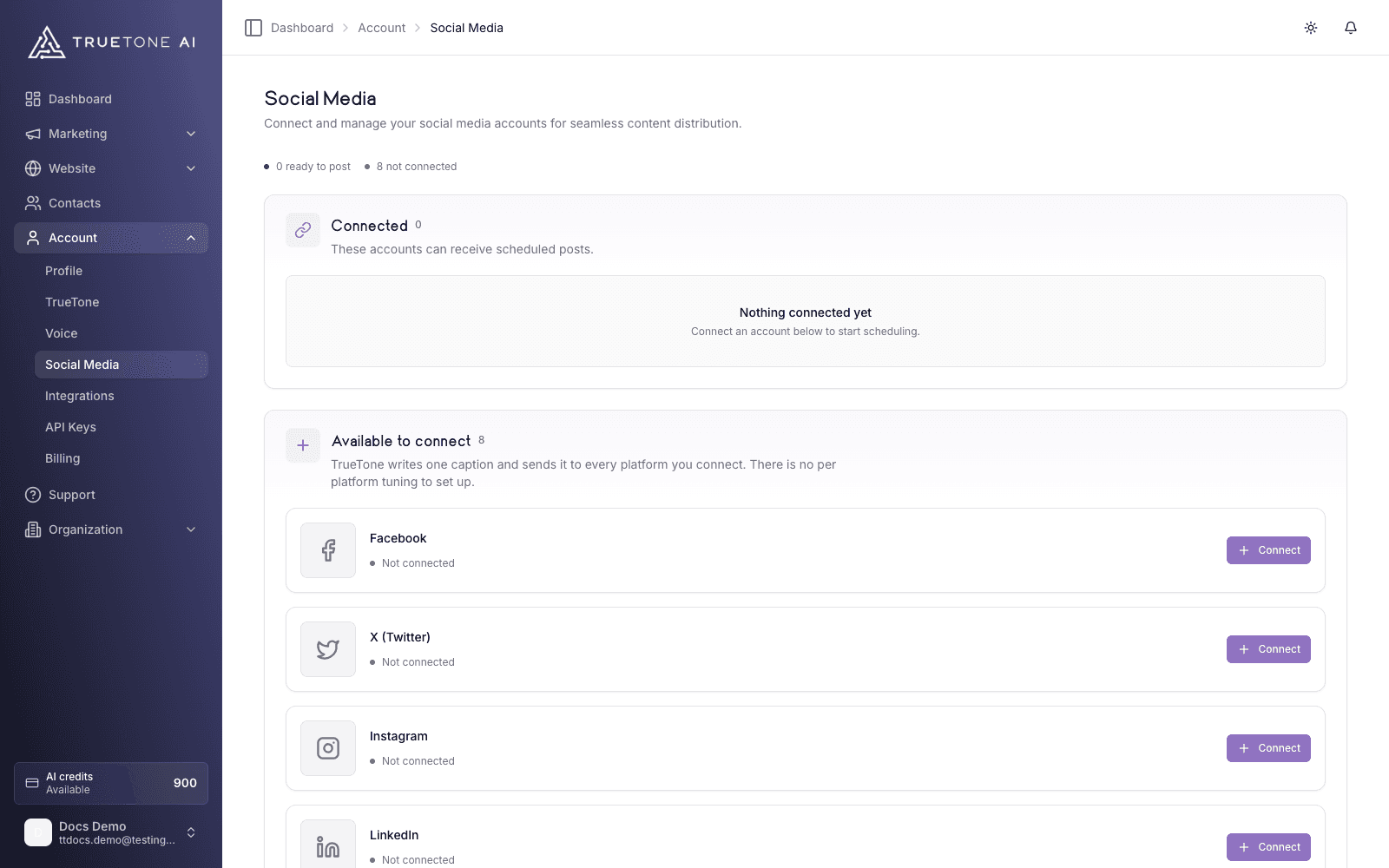
You manage all of this in one place: your account settings, on the Social tab. Each network appears as its own tile that shows whether it is connected, connected but waiting on a page selection, or not connected yet.
The networks you can connect from the Social tab are Facebook, X (Twitter), Instagram, LinkedIn, YouTube, TikTok, Threads, and Google Business.
Who it is for
Any loan officer who wants to schedule posts instead of publishing them by hand. If you plan to use the Scheduler at all, you connect the accounts here first. If you prefer to copy each caption and post it yourself, you can skip connecting entirely and still use every Channel.
Connecting an account
Open the Social tab
Go to your account settings and open the Social tab. You will see a tile for each network with its current status.
Choose a network and select Connect
On the tile for the network you want, choose Connect. TrueTone hands you off to that network’s own secure sign-in screen.
Approve access on the network
Sign in to the network if you are not already, and approve the access it asks for. You are approving this directly with the network, not with TrueTone, and you can revoke it there at any time.
Come back to TrueTone
When you finish, the network sends you back to the Social tab and the tile updates to show the connection. For some networks there is one more short step, covered next.
Choosing a page or channel
Some networks let you manage more than one destination from a single login, so TrueTone needs to know exactly where your posts should go. After you connect Facebook, Instagram, LinkedIn, YouTube, or Google Business, a short window asks you to pick the destination to use: a page, profile, or channel, or for Google Business, the business location.
Until you make that pick, the tile shows a yellow “channel selection pending” note and a “Complete your setup” banner, and the Scheduler cannot post to that account. Choosing the page clears both.
The pick is a simple list. Select the page or profile you want, confirm it, and the account is ready to schedule to. You can reopen the picker later from the banner if you connected several accounts and want to finish them one at a time.
Why this choice also affects reviews
For Facebook and Google Business, the page you select is more than a posting destination. Your website pulls reviews from that same selected page: the Facebook Page you chose, or the Google Business location you chose. In other words, the page you pick here is the business your reviews come from, so choosing it once sets up both posting and review import together. See Reviews for how those imported reviews appear on your site.
Disconnecting an account
To remove a network, choose Disconnect on its tile. After that, the Scheduler can no longer post to it until you reconnect. Your already-created content is untouched; only the live connection goes away.
Facebook and Google Business can also feed reviews to your website. If you disconnect one of them from the Social tab, its review sync is disconnected too. Reviews that were already imported stay on your site; only the ongoing sync stops. TrueTone asks you to confirm before it does this.
There is a subtle difference worth knowing. Disconnecting a review source from the Reviews page stops review syncing but leaves posting alone. Disconnecting the whole account from the Social tab removes both posting and review sync for that network.
When a connection breaks
This is the most common thing to run into, so here is how to read it and fix it.
Reconnect a broken account
If a tile shows a red warning icon or says the connection failed, choose Retry Connect and go through the approval screens again. Networks occasionally expire an app’s access on their side, and reconnecting refreshes it. If a network reports a timeout partway through (X in particular can), give it a few minutes and try once more.
If a connection keeps failing after you reconnect, TrueTone can run a behind-the-scenes health check on your account and tell us exactly what the network is reporting. Reach out to support or your organization admin and we will run it for you. There is no button for it on your side today.
Comments and replies
Once you publish through TrueTone, the comments people leave on those posts are collected back into your account so your engagement lives in one place rather than scattered across apps. On top of that, TrueTone can draft a reply in your voice for you to review, or send a reply you approve back to the network.
Replying to comments in your voice is a paid feature, and the panel for reviewing and answering comments yourself is still rolling out. It is set up with TrueTone today rather than fully self-serve, so if you want it turned on for your account, reach out and we will enable it. As with everything else, nothing is sent until you approve the wording.
Good to know and limits
A few honest boundaries so nothing catches you off guard.
- Connecting is optional. You only need it to schedule. You can always export a caption and post it yourself without connecting anything.
- One choice, two jobs. For Facebook and Google Business, the page you select drives both posting and review import. Change it and you change both.
- Disconnecting is safe for your content. Removing an account stops future posting and, for Facebook and Google Business, review syncing. Nothing you already created or imported is deleted.
- Reconnecting is normal. Networks expire access on their own schedule. A tile going red is usually fixed by a single reconnect, not a sign anything is wrong.
- The Scheduler still does not rewrite. Connecting an account changes where a post goes, never what it says. Your approved caption goes out exactly as you left it.