Site settings
One screen holds your site’s public identity and availability: its name, its description, its favicon, live previews of how your site appears in a browser tab and in a shared link, the switch that takes your site online or offline, and your web address. Your site has no draft layer, so every change goes live the moment you save it.
What it is
The Website settings screen is the control panel for how your public site presents itself. It is organized into two tabs.
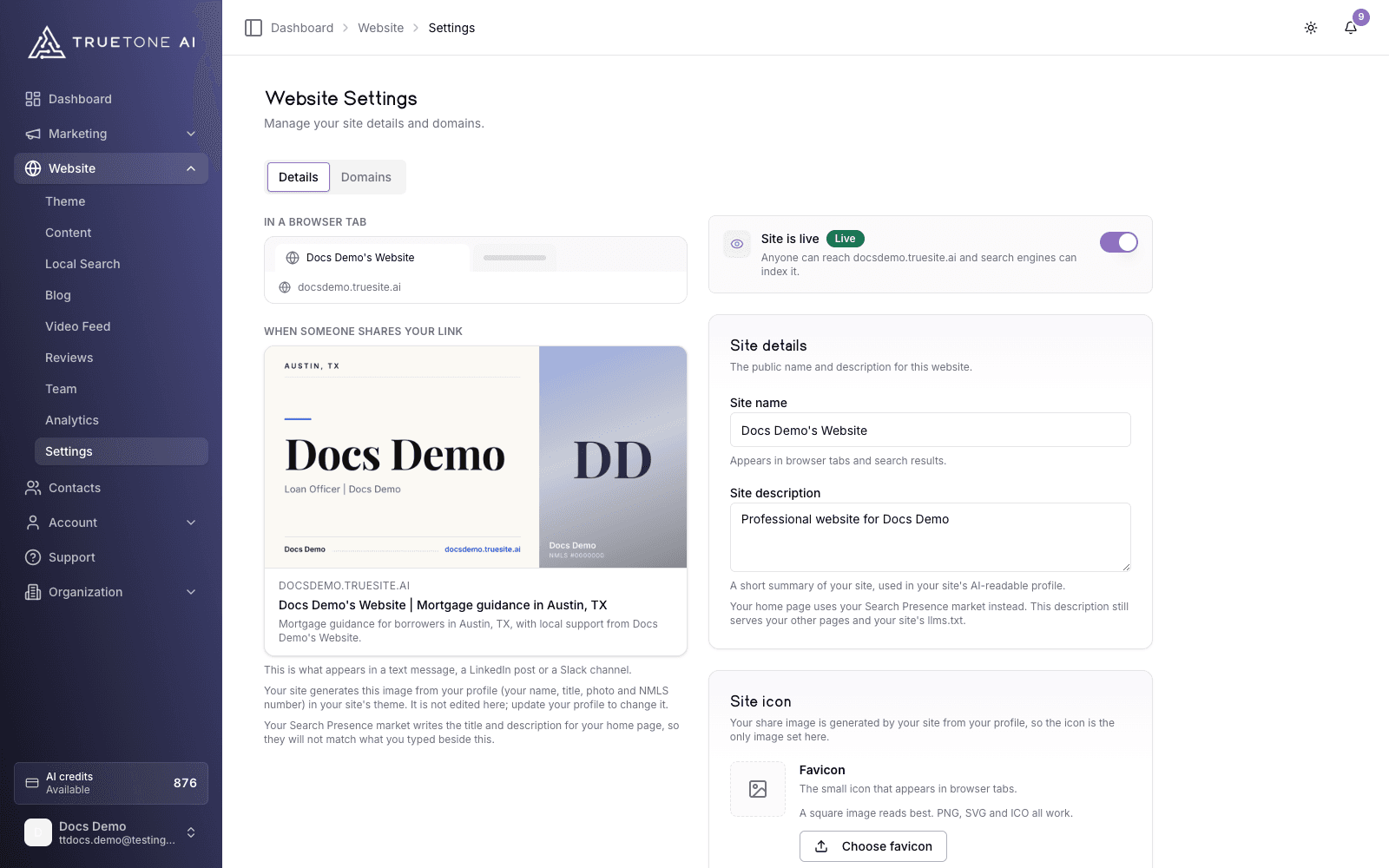
The Details tab is your site identity and availability. On one side it shows live previews of your site’s public face: what it looks like in a browser tab, and the card it becomes when someone shares your link. On the other side sit the controls: the “Site is live” switch, the site name and description, and the favicon.
The Domains tab is your address. It shows your built-in web address, the one your site has carried since signup, and it is where you connect a domain you own so the site lives at your own branded address. The mechanics of connecting your own domain have their own page; see Custom domains.
Because your site has no draft stage, anything you save here is instantly live for every visitor on every address that points at your site.
Who it is for
Any loan officer who wants to shape how their site looks in a browser tab, in a search result, and in a shared link. Sales, marketing, and support teams also use this page to explain exactly which parts of a site a loan officer controls versus what their organization sets for them.
Who can edit these settings depends on your plan.
Individual plan
On an individual plan you manage your own site. The whole Details tab is yours to edit.
Site details
The Details tab holds three editable things, alongside the live previews:
- Site name. The public name of your website. It appears in browser tabs and in search results, so this is what people see when your site shows up in a search.
- Site description. A short summary of your site, used in your site’s AI-readable profile and served to the pages that describe your site.
- Favicon. The small icon that appears in browser tabs. A square image works best, in
PNG,SVG, orICOform. Until you choose one, your site inherits an icon from your logo, and the editor labels where the inherited image comes from.
As you type, the previews beside the fields update, so you can see the browser tab and the shared-link card exactly as a visitor would.
If you have a Search Presence market enabled, your home page’s title and description are written from your market instead of the fields here, and the previews show what actually ships. Your typed description still serves your other pages and your site’s AI-readable profile.
Editing your site details
Open Website settings
Go to Website settings in the dashboard and stay on the Details tab.
Update the name and description
Type a new site name or site description. As soon as you change anything, an unsaved-changes marker appears so you never lose track of edits in progress.
Choose a favicon if you want one
Use Choose favicon to pick an image from your media library, or switch to your organization logo with a single click. If you leave it alone, your site keeps serving the icon inherited from your logo.
Save your changes
Click Save. Your site identity updates and, with no draft layer, the change is live right away.
Your share image
When someone shares your link in a text message, a LinkedIn post, or a chat channel, the card that appears carries an image. That image is not picked in settings: your site generates it from your profile, your name, title, photo, and NMLS number, rendered in your site’s theme.
The Details tab shows a live preview of the real card under “When someone shares your link,” so you always know what a shared link looks like. To change the image, update your profile; to change its look, change your site’s theme. There is nothing to upload here.
Your hosted address
Every site comes with a built-in web address the moment you sign up, created from your name, and it stays live for the life of your site. You can see it, visit it, and change it from the Domains tab.
If you rename your address, two protections apply so you do not surprise your clients:
- You can change your address once every 30 days.
- Your previous address keeps redirecting visitors to the new one for 90 days, so links you have already shared still land in the right place.
When you are ready to put your own name on the site, connect a domain you own. That is a separate, guided process covered in full on the Custom domains page.
Taking your site offline (and bringing it back)
The Details tab carries a Site is live switch with a Live or Offline badge beside it.
- On means anyone can reach your site and search engines can index it.
- Off takes your site offline: it is removed from the web and de-indexed from search engines. You can bring it back online at any time with the same switch, at the same address.
- The switch saves immediately. Flip it and a confirmation appears; if the save ever fails, the switch rolls back so what you see always matches what is live.
There is one state the switch does not control. If the subscription on your account becomes inactive, whether you cancel or payment finally fails after the retry window, your site is taken offline automatically and the switch is replaced by a notice pointing you to billing. While a failed payment is still being retried, your site stays live. Settle billing and your site comes back up automatically, with the same address, and the switch returns. A site you deliberately switched offline stays offline through all of that until you turn it back on yourself.
Good to know
There is no draft layer. Anything you save on this screen, a new name, a new description, a new favicon, or a flip of the Site is live switch, is live on your public site immediately. There is no separate publish step.