Account and settings
Account is where you keep the details that make your content sound and look like you: who you are, your license details, how you want the AI to write, and which outside accounts are connected. Set it once, adjust it whenever.
What it is
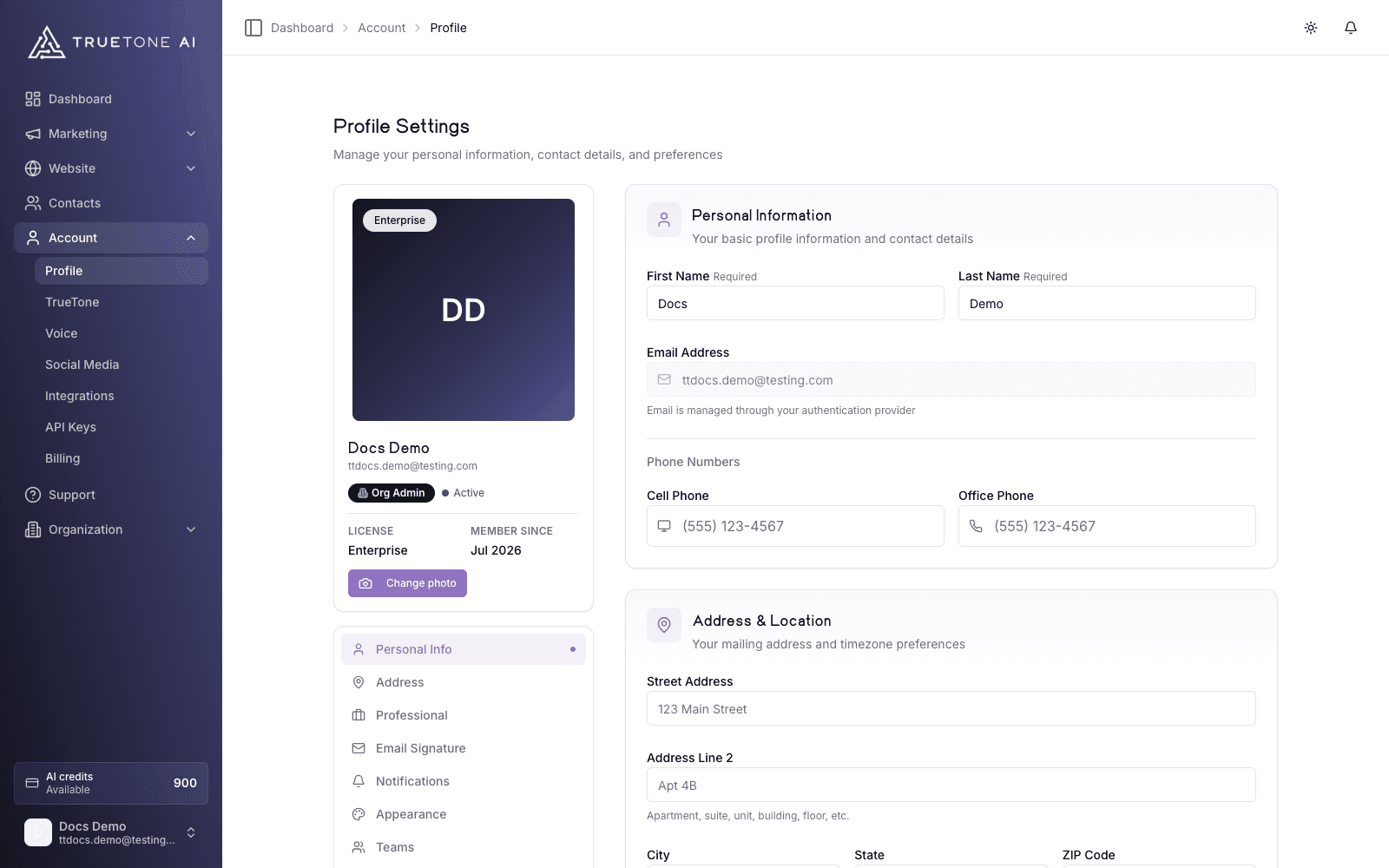
Account is the settings hub for your own login. Opening it drops you on your Profile, and a short menu on the left moves you between the other areas. Nothing here is shared with teammates by default: these are your personal details and preferences.
Most of it is practical. Profile holds your name, contact numbers, mailing address, timezone, and professional license details, plus your email signature and a few preferences. Separate areas let you shape how generated content reads, manage your voice model, connect the social accounts you publish to, and connect outside tools.
A few areas depend on how your account is set up. If you are on a personal plan you also get Organization and Branding controls. If you hold a seat inside a company account, your company owns those, so they are managed for you instead.
Who it is for
Every loan officer touches Account at least once during setup, then returns to it now and then to update a phone number, add a state license, retune the writing, or connect a new social account. Sales, marketing, product, and support teammates use this page to explain exactly which settings a loan officer controls and which ones a company account manages on their behalf.
What lives under Account
| Area | What you manage there |
|---|---|
| Profile | Name, sign-in email (read only), phone numbers, mailing address, timezone, job title, NMLS or state license, states licensed in, email signature, notification preferences, interests, and (for company seats) your team memberships |
| TrueTone | The eight voice traits plus written direction that shape how generated content reads |
| Voice | Your voice model: test it, retrain it, tune its output, or delete it |
| Social Media | Connect and manage the social accounts you publish to |
| Integrations | Connect TrueTone to outside tools so leads, content, and notifications flow out to them |
| API Keys | Manage keys for the TrueTone API and your AI assistant connections (see API keys and AI connections) |
| Organization, Branding | Personal plan only: your company details and brand colors, fonts, and logo |
Billing, credits, and notifications each have their own dedicated pages in these docs. This page focuses on the personal settings that live under Account.
Your profile, section by section
Profile is split into a handful of sections you move through from the left menu.
Personal Info holds your first and last name, your sign-in email, and three phone fields (cell, office, and fax). Your email is shown but not editable here, because it is how you sign in.
Address and Location holds your mailing address and your timezone. The timezone you pick is used for scheduling and for showing dates in your local time, so it is worth setting early.
Professional is where your license details live: your job title, your NMLS ID or state license number, and every state you are licensed in. States are a multi-select, and a small summary card confirms how many you have chosen.
Email Signature controls how your generated emails sign off. Turn it on, pick a template, and choose which details to show. Details are simple toggles for your headshot, your company logo, your social links, and a compliance line. A live preview renders with your real profile and organization details so you can see the exact sign-off before you save.
Notifications and Interests also live inside Profile. Both are covered briefly below and in full on their own pages.
How to update your profile
Open Account
From the sidebar, open Account. You land on Profile. The left menu lists the sections: Personal Info, Address, Professional, Email Signature, Notifications, Teams (company seats only), and Interests.
Edit the fields you need
Update your name, phone numbers, mailing address, and timezone. Under Professional, set your job title, your NMLS or state license number, and every state you are licensed in.
Set your email signature
Turn on a signature so your generated emails end with your details instead of a generic footer. Pick a template, toggle the details you want to include, and watch the live preview update.
Save your changes
Most sections collect your edits and save together when you use the save bar. Interests are the exception: tapping a topic saves it right away, with no save button.
Tuning how your content sounds
Two areas control the voice behind your content, and they work together.
TrueTone is where you shape the writing. Eight traits act like dials (tone, formality, humor, emotional expression, detail, vocabulary, length, and engagement style), each with a plain-language description. Below them, a written direction area lets you spell out a voice brief, phrases to lean into, phrases to avoid, and sample lines that sound like you. Your own words win over anything the system inferred.
Voice manages your recorded voice model, the clone that narrates audio content. From here you can play your original recording, generate sample audio in a test studio, retrain by recording again, and tune the output. There is also a delete option if you want to start over.
Both of these are covered in depth on Your TrueTone Profile. This page is the map; see that page for the detail on the traits, the written direction, and your voice model.
Connected accounts and integrations
Social Media is where you connect and manage the accounts you publish to. Once connected, those accounts become available when you schedule and publish social posts.
Integrations connect TrueTone to outside tools so your leads, content, and notifications flow out to them automatically. Think of these as one-way handoffs: TrueTone pushes information out to your other systems. You can export or push contacts to your CRM this way, but TrueTone does not run a live two-way sync with an outside system.
On a company seat, Integrations shows the connections your organization has assigned to you rather than ones you set up yourself.
Notifications and interests
Two preference areas live inside Profile and are worth knowing about.
Notifications let you decide which alerts reach you and how, from published content and completed generations to approvals, integration errors, and account alerts. The full breakdown, including email delivery options, lives on the Notifications page.
Interests are tap-to-follow topics. Following a topic shapes your daily seed digest and moves matching topics higher in your seed library. Interests never hide anything: everything stays searchable. See Interests and the seed digest for more.
What changes by account type
Personal plan
You control everything. Alongside Profile, TrueTone, and Voice, you get an Organization area for your company details and a Branding area for your colors, fonts, and logo. Your plan, payment details, and credits are handled in your Billing area.
Good to know
Your email address is not editable from Profile. It is tied to your sign-in, so changing it is a separate step, not a profile field.
Deleting your voice model stops content generation that needs it (audiograms in particular) until you record a new voice. It also clears your original recording from your account, so starting over means recording again.
Some settings appear only when they apply. Teams shows for company seats, Organization and Branding show for personal plans, and a Learning area appears only where your account has that feature turned on. It is not part of the standard settings yet.