Website blog
The Blog Management screen is the control room for every article on your hosted website. From one screen you publish, schedule, set back to draft, archive, delete, and search your posts, act on many at once, and turn on audio versions read in your own voice. Writing and editing an article happens elsewhere; this is where you decide when and whether it goes live.
What it is
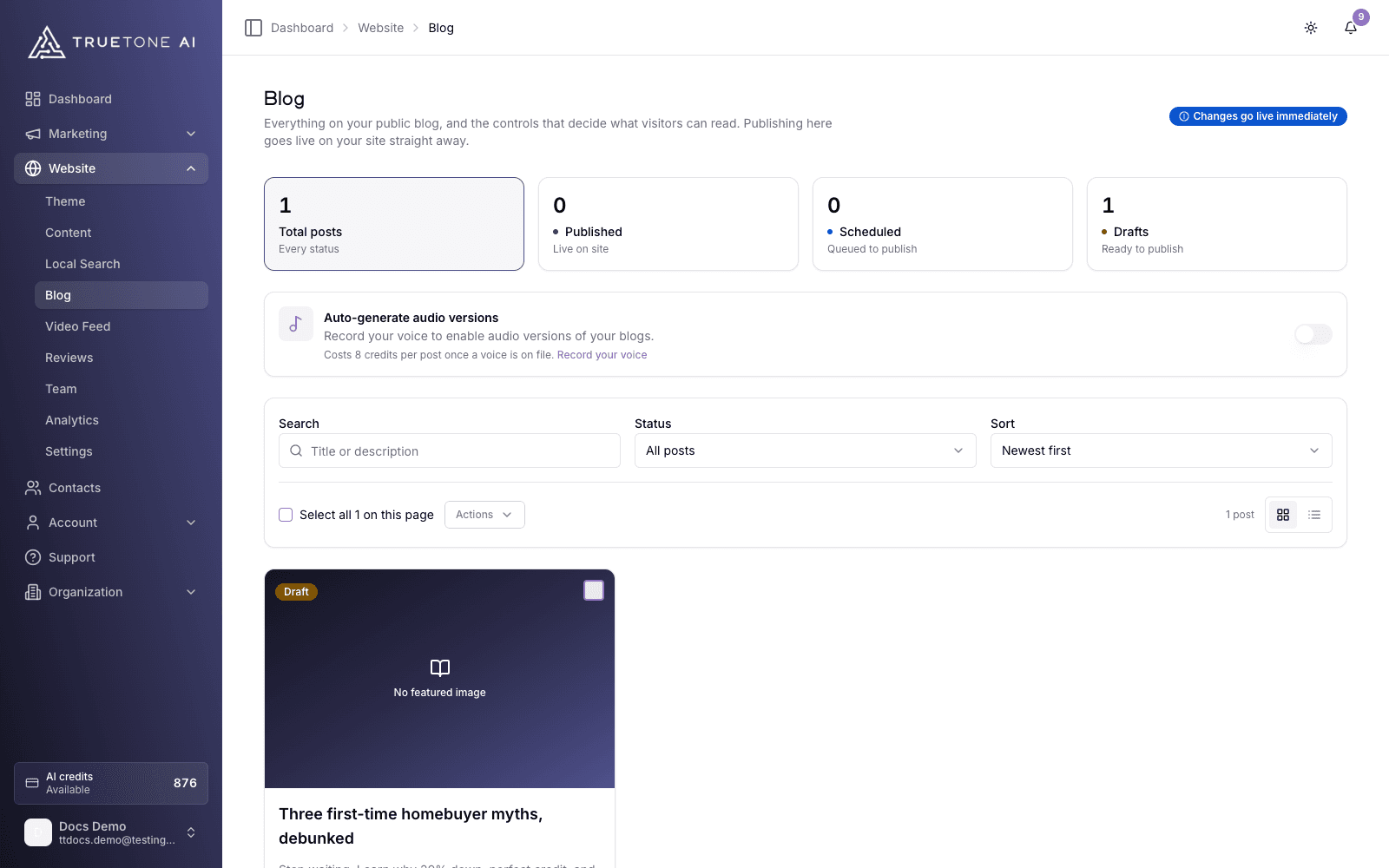
Your website is a hosted CMS, and Blog Management (found under Website, then Blog) shows the posts that live on it. Each post is a card carrying its featured image, title, meta description, status, author, and its dates: when it was published (or, for a scheduled post, when it publishes) and when it was last updated. When a post has an audio version, a quiet line on its card tells you whether the audio is ready, still processing, or failed. A toggle switches the collection between a card grid and a single-column list; both show the same cards.
This screen is deliberately not the editor. It manages state, not content. To change the words, the title, or the featured image of a post, you open it in the blog editor, by clicking the post’s title here or from its Creations entry. To decide when a post appears in front of visitors, and to run the same change across many posts at once, you stay here.
Everything you do here is scoped to your own posts. A published post is instantly live for visitors, because your website has no draft layer. Scheduling is how you line up a future go-live without publishing on the spot.
Who it is for
Any loan officer keeping a steady blog on their TrueTone site who needs a fast way to see what is live, what is scheduled, and what is still a draft, then act on all of it in bulk. Sales, marketing, and product teams use this page to understand exactly which publishing controls exist on the management screen and how blog audio is billed.
How to publish and manage posts
Find the post
Use the search box to match on title or description, narrow by status with the status filter (published, scheduled, draft, or archived), and pick an order from the sort dropdown: newest or oldest first, recently updated, recently published, or title or status alphabetically. The four count tiles at the top, total, published, scheduled, and drafts, are filters too: click one to see exactly those posts. Long lists are paged, and you can set how many posts show at once.
Select what you want to change
Tick the checkbox on one or more cards, or use the select-all checkbox to select every post on the page. The Actions menu holds the bulk operations: Publish, Set as draft, Schedule, Archive, and Delete. The menu is always visible and stays disabled until something is selected; every action runs against all selected posts at once, and the button shows a live count while it works.
Publish now
Choose Publish. Blog posts require a featured image, so if a selected post does not have one yet, you are prompted to add an image for it before it goes live, one post at a time. The first time you publish, a one-time confirmation reminds you that changes go live immediately.
Or schedule it
Choose Schedule and pick a future date and time. The selected posts publish automatically at that moment. A scheduled date must be in the future; the picker will not let you confirm a past time. Until it goes live, a scheduled post’s card shows the planned date, labeled “Publishes” so it never reads as already published.
Take a post back down
Set as Draft returns a post to draft so it is no longer public (you can republish it later). Archive moves it to the archived state, out of your active list. Delete removes it permanently and cannot be undone.
View or edit the post
Click a post’s title to open it in the blog editor, where you change the words, title, meta description, and featured image; on this screen, opening a post is editing it. For a published post, a View on site button on its card opens the article on your public website in a new tab, so you can confirm exactly what a visitor sees.
What each status means
| Status | What it means for visitors |
|---|---|
| Published | Live on your website right now. |
| Scheduled | Set to publish automatically at a future date and time. |
| Draft | Not public. Being worked on, or taken back down from live. |
| Archived | Set aside, out of your active list, and not public. |
Bulk actions, done safely
Bulk actions are built to be forgiving. If some posts in a selection cannot be changed (for example, one is missing something the action needs), only those are held back, and you get a clear note telling you how many did not go through. The rest still complete. This is true for publishing, scheduling, setting to draft, and archiving.
Deleting is the one action with no undo. It clears the posts and any scheduled entry tied to them, and you confirm in a dialog before it runs.
Publishing is reached by selecting cards and opening the Actions menu, not by a separate one-click button on each card. The only button a card carries is View on site, which appears once the post is published; the card’s title is the way into the editor.
Blog audio: an optional listen in your own voice
You can offer visitors an audio version of your articles, narrated in your own cloned voice. It is entirely owner opt-in and it is billed to you, never triggered by a site visitor.
The simplest way to turn it on is the Auto-generate audio versions toggle on this page. With it on, every blog you publish from then on, including scheduled posts when they go live, gets an audio version generated automatically, and a player appears on your public post once the audio is ready. The audio line on that post’s card lets you watch it move from processing to ready, and tells you if a generation failed.
Audio requires a recorded voice. If you have not set up a voice yet, the toggle stays disabled and prompts you to record one first. Each audio version costs a flat 8 credits per post, charged like any other credit action.
For the full walkthrough of blog audio, including how it is priced and what visitors experience, see Website blog audio.
Good to know
There is no draft layer on your public website. The moment you press Publish, the article is live for visitors. Use Schedule when you want to line up a future go-live instead of publishing on the spot.
A few honest limits worth knowing:
- This screen manages status, not content. To edit the article itself (words, title, meta description, or image), open it in the blog editor by clicking its title here, or from Creations.
- Publishing is a bulk action, reached by selecting cards and opening the Actions menu. There is no separate one-click publish button on each card.
- Blog audio is owner-initiated only. Site visitors can never spend your credits, and republishing an unchanged article does not charge you again.
- Very long articles fall outside the flat-price length cap and are skipped for audio, so audio does not appear on every post automatically.
- Audio generation never blocks publishing. Your post goes live whether or not the audio succeeds.
- Deleting a post is permanent. It also clears any scheduled entry tied to that post.