Editing your site content
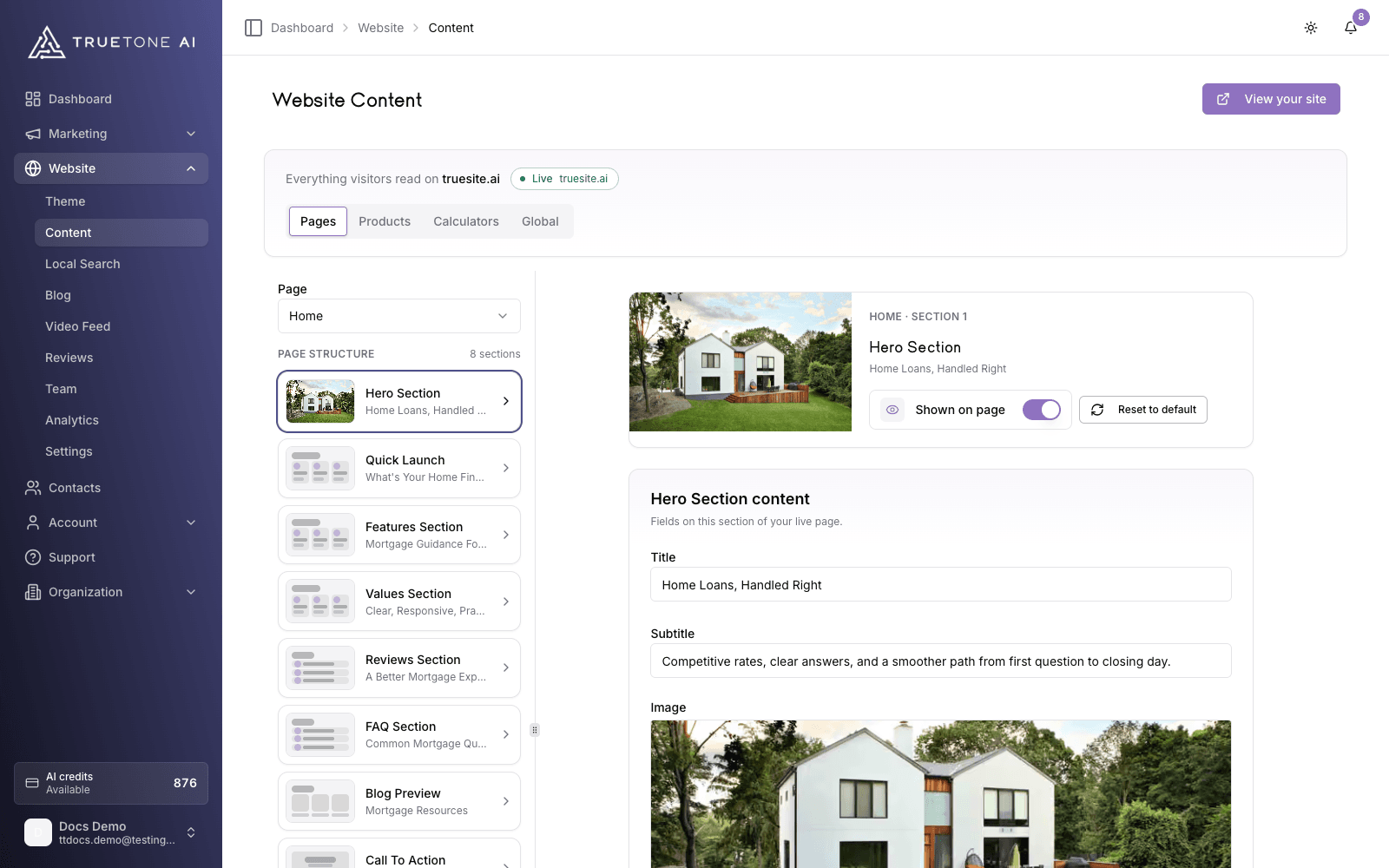
The Content workspace is where you edit the words, images, and sections a visitor sees. You work one section at a time across four areas: Pages, Products, Calculators, and Global. There is no separate publish step. When you save, the change is live on your public site.
What it is
Content is the editing heart of your website. Your site arrives already built and filled with professional default content, so you are refining what is there rather than starting from a blank page. You open the section you want to change, edit its fields, and save.
Everything lives in a two-panel workspace. On the left, a navigator lets you pick what to edit and see its structure. On the right, the editor shows the fields for the one section you selected. This keeps even a large site calm and manageable, because you are only ever looking at a single section’s content.
Your public site reads your content fresh on every visit, so there is no draft copy sitting between you and your audience. Saving is publishing, and it happens immediately.
Who it is for
Any loan officer who wants to keep a polished website current without a developer or a website builder. If you are on an enterprise plan, some details may be managed for you by your organization administrator, and the dashboard tells you when that applies.
The four areas you edit
Four tabs sit across the top of the workspace. Each groups a kind of content.
| Area | What lives there |
|---|---|
| Pages | Your standard site pages: home, about, products, calculators, blog, contact, your application (Apply) pages, and legal pages like terms and privacy. |
| Products | The individual loan products you showcase, each with its own sections. |
| Calculators | The four calculator tools featured on your site. |
| Global | Site-wide elements that appear on every page: your navigation, your footer, and your calculator disclaimer. |
Inside Pages, Products, and Calculators, you first choose which item to edit from a dropdown, then the navigator shows that item’s sections. Inside Global, you pick navigation, footer, or the calculator disclaimer directly. The footer’s Legal card also holds a “Show NMLS disclosure” toggle that controls whether your NMLS details render in your site footer; the independent-operator disclosure always shows, because that one is required and never suppressed.
Pages includes your Apply suite: the application start page, its purchase, refinance, and HELOC paths, and the confirmation page. On those pages you edit the descriptive copy around the application, like the hero and the reassurance text. The application itself, its step names, questions, option labels, and validation, is fixed and compliance-reviewed, so the wizard always works and always says what it must.
The calculators overview page works the same way: its grid is a fixed set of four cards, one for each of the site’s four calculators. The copy on each card is yours to edit, but cards cannot be added or removed, because each card opens one of the four calculator tools.
How a page is built
Every page, product, and calculator is made of sections, the stacked bands a visitor scrolls through: a hero, a features grid, a call to action, an FAQ, and so on. The left navigator lists these under “Page Structure.” Click a section to load its fields on the right, and a hidden section is marked so you can spot it at a glance.
How to edit a section
Pick what to edit
Choose an area tab, then select the page, product, or calculator from the “Select Content” dropdown. For site-wide elements, open the Global tab and choose navigation, footer, or the disclaimer.
Choose a section
In “Page Structure,” click the section you want to change. Its fields appear in the editor panel.
Make your edits
Update the fields. As soon as a field differs from its saved value, it is highlighted and an “Unsaved Changes” marker appears in the header.
Save
Click “Save Changes.” Your edits go live on your public site right away. Use “View your site” in the page header to open the live site in a new tab and confirm.
What you can edit in a section
The editor shows the right control for each field automatically. Depending on the section, you will see:
- Text and long text. Short headlines and badges use a single line; descriptions and body copy use a resizable box.
- Rich text. Legal pages (Terms and Privacy) and certain write-up sections use a formatting editor for headings, lists, and links.
- Images. Pick an image from your media library or use the built-in default.
- Links. Choose a common destination like your Home or Contact page, or enter a custom web address.
- Lists. Sections such as features, values, FAQs, and steps use repeatable item lists you can add to and remove from. Some lists have a minimum and maximum number of items, and the editor holds you inside those limits.
- Icons. Some list items let you pick an icon to sit beside the text.
Showing and hiding sections
Each section has a visibility switch in the editor header. Turn it off to hide that section from your live page without deleting anything, and turn it back on to bring it back. Hidden sections are labeled in the navigator, and the editor reminds you when the section you are viewing is currently hidden.
Resetting to defaults
If you want to undo customizations, you have three levels of reset:
- A single field. A changed field shows a small “Reset” control that returns just that field to its default.
- A whole section. “Reset to Default” in the section header restores that section’s content.
- Everything in the item. The same reset can clear all your customizations for the page, product, or calculator you are viewing.
Resetting removes your customizations and restores the default content. It cannot be undone, so use it deliberately. The editor asks you to confirm first.
Saving goes live immediately
There is no draft version of your site. The moment you save, your public site serves the new content. Treat every save as publishing: review a change, save it, then use “View your site” to confirm it reads the way you want.
The editor protects your work while you are still editing. If you try to switch sections, change tabs, or leave the page with unsaved edits, it asks whether to save, discard, or stay so nothing is lost by accident.
Good to know
Reviews and teammates are not edited here. When a section shows customer reviews or team profiles, the editor links you to their dedicated workspaces. Manage them in Reviews and the Team workspace. If a reviews or team section has no entries, it is hidden from your live site automatically.
Some fields have length limits to keep your layout looking right. For example, the short bio on your About page hero is capped at 250 characters, and the editor shows a live character count as you type.
Colors and fonts are not part of Content. Those live in your site’s Theme. And on enterprise plans, your organization administrator may manage some of your site, in which case the dashboard tells you those details are handled for you.