Contacts
Contacts is a lightweight, CRM-style list of the people who reach out through your site. Capture them, tag and track them, then push or export them to the CRM you already work in.
What it is
Contacts is a simple people list built into TrueTone. Each record holds a name, email, phone, a status, a set of tags, and notes. It is not a full CRM and does not try to be. It is the light layer that sits between your public site and wherever you actually run your pipeline.
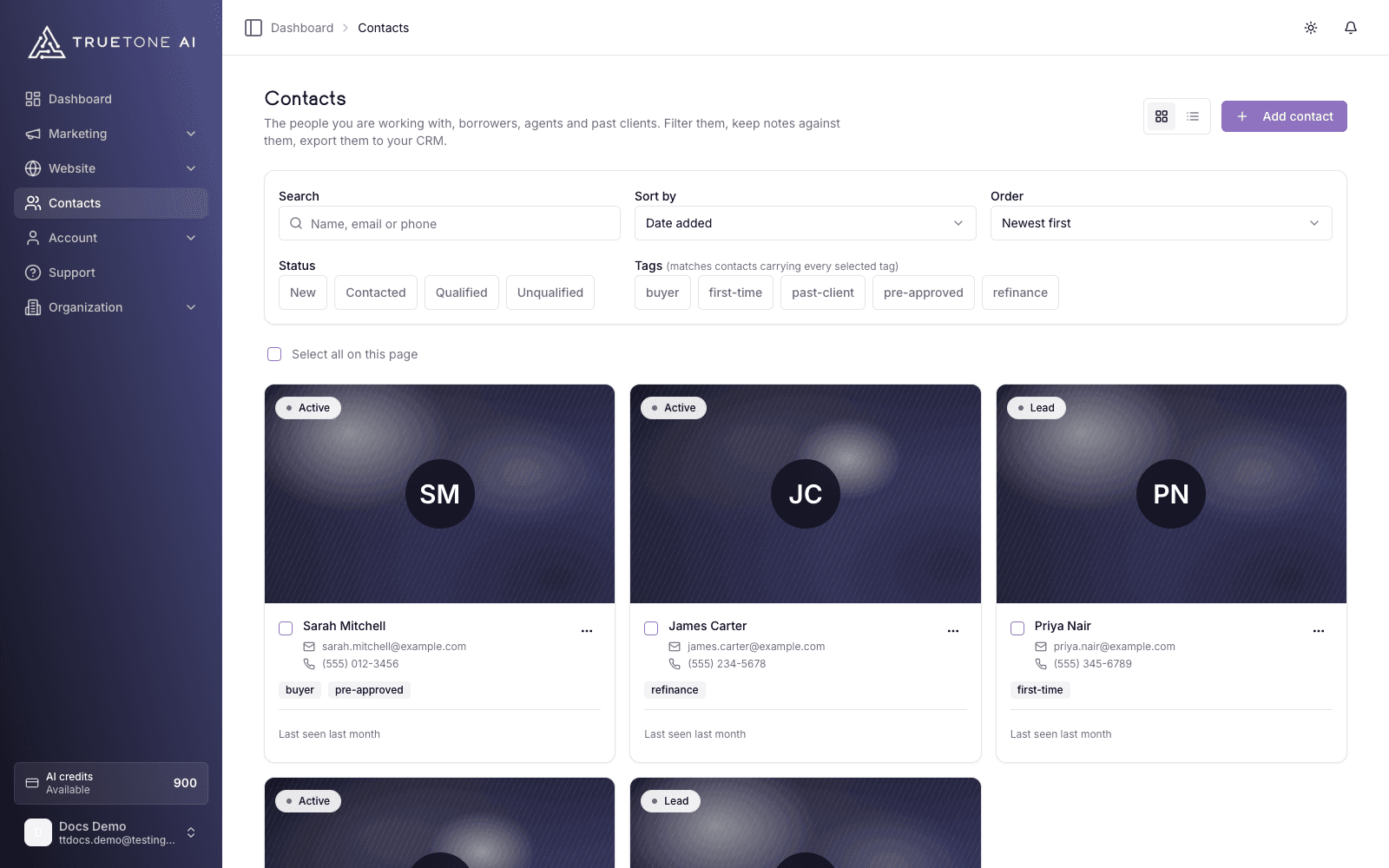
The list itself is a clean table. You see each person’s name, email, phone, current status, their tags, and when you last saw them, and you can sort by name, email, status, or last seen, filter, and search to find the right people fast. Click any name to open the full record.
Most contacts arrive on their own. When someone fills out a form on your hosted website and leaves an email address, TrueTone creates or updates their contact record automatically, stamps when you first saw them and last saw them, and attaches the form submission so you can see what they asked about. If the same person comes back and submits again, TrueTone matches them by email and adds the new submission to the record they already have, so one contact grows over time instead of splitting into duplicates. You can also add a contact by hand in a few seconds.
From there, you organize. Set a status, add tags, jot notes, search and filter the list, and sort by name, email, status, or last seen. When you are ready to work a contact in your real system, push it to a connected integration or export it to a CSV file.
Who it is for
Any loan officer who wants a clean record of inbound interest without standing up a heavy CRM. If people are already reaching you through your site, Contacts gives you one place to see them, sort them, and hand them off.
Sales and marketing can point to it as the answer to “where do the leads from my website go?” The honest framing is that it captures and organizes inbound, then feeds your existing system of record. It is a front door, not a replacement for the CRM your team already trusts.
How it works
Capture a contact
Contacts come in two ways. They are captured automatically when someone submits a form on your website and includes an email address, or you add one yourself with the Add Contact button (name, email, phone, status, tags, and notes). A new contact starts in the New status.
Organize the list
Give each contact a status, add tags, and keep notes. Then use the toolbar to search by name, email, or phone, filter by status and tags, and sort by name, email, status, or last seen. When your list grows, these filters are how you find the right people fast.
Work in bulk
Tick the checkboxes to select several contacts at once. An Actions menu appears where you can update everyone’s status in one move, push the whole batch to an integration, or delete them together. It saves you from editing records one at a time after a busy week of inbound.
Open a contact
Click any name to open its detail page. You get their contact information, the notes you have kept, and a submission history showing which forms they filled out on your site and when. From here you can edit the record, mark whether the person has given marketing consent, or delete it. Notes act as a running log, so the next time this person surfaces you have the context in one place.
Push or export
Every row has a menu (the three-dot icon) to push that single contact to a connected integration, and the bulk Actions menu pushes everyone you have selected. Prefer a file? Tick the rows you want and choose Export to CSV to download a file (named contacts-export-YYYY-MM-DD.csv) that loads straight into your CRM. The export carries every field, including a stable contact ID for matching records on the other side, plus tags, marketing consent, timestamps, and submission history.
Statuses
Contacts move through four built-in statuses. Use them however fits your workflow.
| Status | What it usually means |
|---|---|
| New | Just arrived, not yet worked |
| Contacted | You have reached out |
| Qualified | A real opportunity |
| Unqualified | Not a fit right now |
Good to know
There is no live CRM sync. The connection to your CRM is one-directional and on demand: you push contacts out or export a CSV when you choose to. Changes you make later inside your CRM do not flow back into TrueTone, and vice versa.
Your contacts are your own. The list shows the inbound tied to your account, not a shared team pool, so you only ever see your own people.
The list loads in pages so a long history stays fast. Search, status, and tag filters look across your whole list, not just the page you happen to be viewing, so you always find the right person even when the list runs long.
Pushing a contact requires a connected integration for contacts. If none is set up, the push menu will simply tell you there are no integrations for this event, and you can still export to CSV in the meantime.
The exported CSV opens cleanly in Excel and Google Sheets, and tags come across as a semicolon-separated list in a single column. Only the contacts you have selected are included, so tick the rows you want before you export.
A website form only becomes a contact when the visitor leaves an email address. Submissions without an email are still recorded on your site, but they do not create a contact record here. See Website forms and leads for how those submissions are captured.
TrueTone does not email your contacts for you. Contacts is a record and a hand-off, not an outbound sender. Email creations are export-only drafts you send from your own tools, so there is no “reply and I will send it” step here.
Tags are your own labels, so build whatever vocabulary fits how you sort people (referral source, loan type, priority, and so on). They double as filters, which is what makes a long list workable.
Deleting a contact, on its own or as part of a bulk selection, is permanent and removes the record for good, so export anyone you might want to keep before you clear them out.
Bringing an existing list in through a bulk file upload is not part of Contacts today. Records arrive from your website forms or one at a time through Add Contact.