Your team page
Your team page controls the people shown in the team section of your TrueTone website. If you work with an assistant, a co-branded partner, or a loan processor, you can add each of them by hand so visitors see the whole team behind you. Everything you add is tied to your own website and appears only there.
What it is
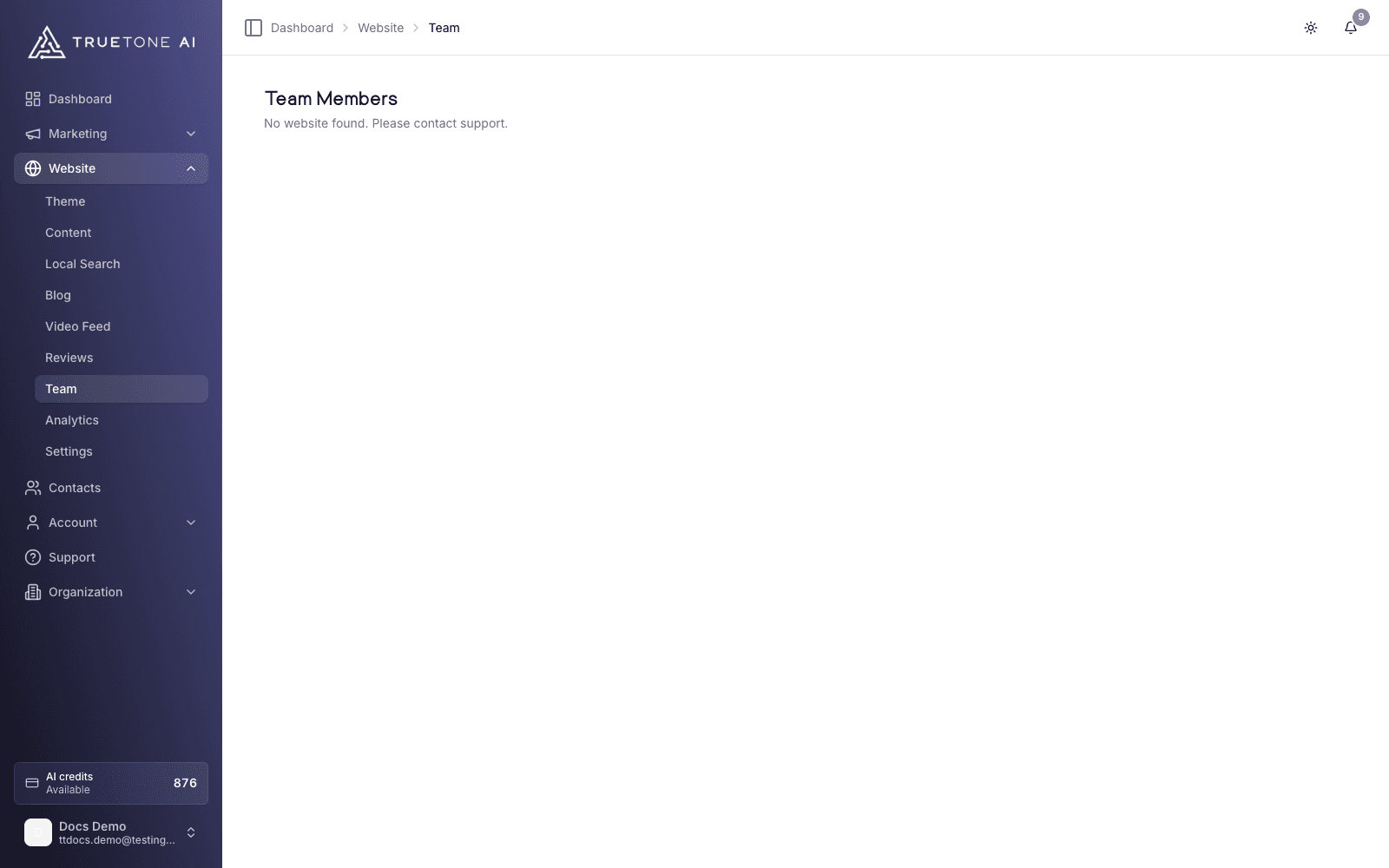
The team page lives under Website, then Team, in your dashboard. It is a simple roster of the people you want to feature on your public site. Each person you add appears in the team or About section of your site’s theme, so a prospect landing on your page sees real names and faces, not just yours.
For a solo loan officer, you build this list yourself. You add each teammate, fill in their details, arrange the order, and remove anyone who moves on. There is no draft layer on your public site, so a change here updates your live site right away.
Who it is for
Any loan officer with a TrueTone website who wants to show more than one person. If you have a partner, an assistant, or support staff you want prospects to recognize, the team page is where you introduce them.
If your account is a seat inside an enterprise organization, your team page works differently. See Enterprise organizations below.
What each teammate shows
For every person you add, you can fill in:
- First and last name, the only two required fields.
- Title, such as Loan Officer, Branch Manager, or Processor.
- Email and phone, both optional and lightly checked so a typo does not slip through.
- A photo, chosen from your Media Library through the picker.
- A short description or bio in their own words.
Because only a first and last name are required, you can add someone with just their name and fill in the rest later.
How to add a teammate
Open the team page
Go to Website, then Team. You will see your current roster, or an empty list if you have not added anyone yet.
Start a new teammate
Select Add Teammate. A form opens for the person’s details.
Fill in their details
Enter at least a first and last name. Add a title, email, phone, photo, and a short bio if you have them. The first time you make a change here, TrueTone shows a quick confirm so you know your edit goes live on your site.
Save
Save the teammate. They appear in your roster and in the team section of your live website.
Editing and reordering
Open any teammate from the list to edit their details or replace their photo, then save. To change the order people appear in, drag the rows into the arrangement you want; the new order saves on its own. To remove someone, use Delete and confirm. Deleting cannot be undone, but you can always add the person again.
Reordering only rearranges people, so it never triggers the live-change confirm; adding a new person for the first time does.
Because there is no draft layer, adding, editing, reordering, and deleting all take effect on your public site immediately.
Where your team appears
The people on your roster render in the team or About section of your website, in whichever theme you have chosen. Every theme includes this section, so changing your theme keeps your team on display. The photo, title, and bio you enter for each person are what visitors see, so a clear headshot and a short, human bio do a lot of the work for you.
If you have not added anyone, only you appear, which is exactly right for a true team of one. Add people as your team grows, and reorder them any time to put the right person first.
Enterprise organizations
If your account is a seat inside an enterprise organization, the hand-built team page is closed. Instead of a form, you will see a note that your roster is managed by your organization.
For enterprise organizations, the people shown on your public site are drawn from your company’s licensed seats rather than typed in by hand. That way everyone listed is a real, licensed seat on your team, and no one can publish a name that does not belong. To change who appears, contact your organization admin, who manages the public roster centrally.
If you are the organization admin, that roster is the LO Roster, where seats become the authoritative source for who shows up on each site.
Good to know
The team page is scoped to your website alone. The people you add show only on your site and never appear on another site in your organization. Changes are live the moment you save, so treat each edit as publishing to your site now. Your own profile always anchors the site, so the team page is for the people around you, not for you.