Video feed
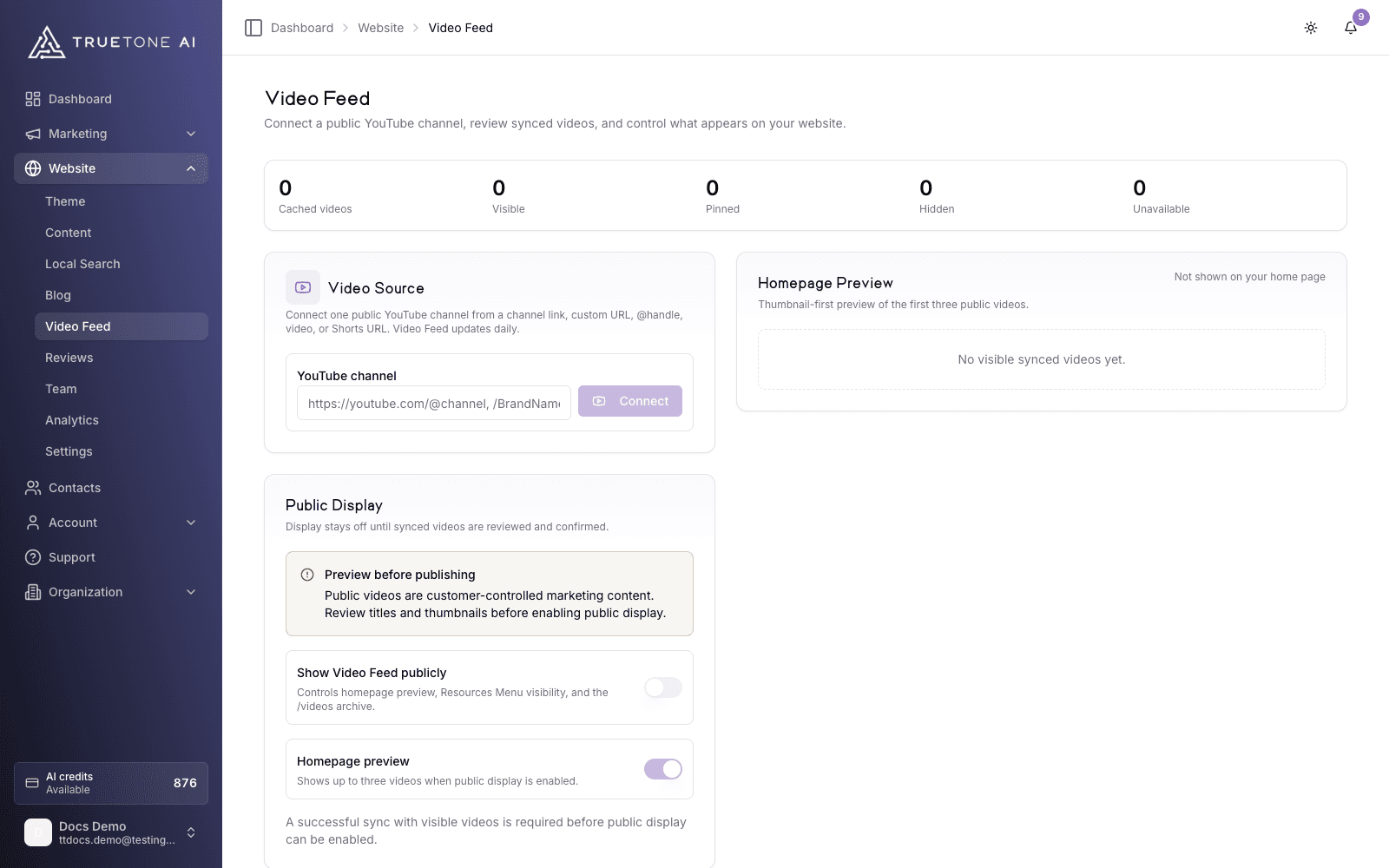
Connect one public YouTube channel and TrueTone mirrors its recent uploads onto your website. You review what synced, pin and hide individual videos, and only turn on public display once you have seen exactly what visitors will see. Nothing goes live until you say so.
What it is
Video feed lives under Website in your dashboard. It links a single public YouTube channel to your site, pulls in that channel’s most recent uploads, and lets you decide which ones appear publicly and in what order.
TrueTone never touches your YouTube channel. It reads your public uploads, caches the title, thumbnail, published date, and length, and links visitors back to the videos on YouTube. When you publish the feed, it can show up in three places on your site: a small preview on your homepage, a Videos link in your site’s Resources menu, and a dedicated Videos page that lists the full feed.
Everything is tied to one website. The channel you connect and the choices you make only affect that site, and they never spill onto another site in your organization.
Who it is for
Any loan officer with a TrueTone website who already posts to YouTube and wants that work showing up on their own site instead of living only on YouTube. If you record market updates, client tips, or neighborhood tours, the feed turns them into a living video section on your website without you re-uploading anything.
This is separate from the Video channel, where TrueTone writes voice-aligned video scripts for you. The Video feed does not create videos. It surfaces the ones you have already published on YouTube.
How it works
Connect a YouTube channel
On the Video feed page, paste a link to your public YouTube channel. You can use a channel link, a custom URL, an @handle, or even a link to one of your videos or Shorts. TrueTone figures out which channel it belongs to.
Confirm the channel when asked
If your input is exact, such as a clean @handle or channel link, TrueTone connects it straight away. If it has to search to find the right channel, for example when you paste a brand name or custom URL, it shows you the channel it found and asks you to confirm before saving. This prevents connecting the wrong account.
Let the first sync run
The moment you connect, TrueTone runs an initial sync and pulls in up to fifty of the channel’s most recent uploads. Within a few seconds you see them cached on the page, along with a summary of how many videos are cached, visible, pinned, hidden, or unavailable.
Review and curate
Look through the synced videos. Pin the ones you want featured, hide anything you would rather keep off your site, and put your best content in the order you want. This all happens privately. None of it is public yet.
Turn on public display
When the preview looks right, confirm it and switch public display on. That is the step that actually puts the feed on your live website.
Curating what appears
The Curation list shows every cached video with controls on each row:
- Pin: mark a video as featured. Pinned videos always publish first, in the order you arrange them. Use the up and down arrows to reorder your pinned videos.
- Hide: keep a specific video off your public feed without removing it. Hiding a video also unpins it. Show it again any time.
- Order: anything you have not pinned falls in below your pinned videos, newest first.
A video that goes private, gets deleted, or is otherwise pulled on YouTube is marked Unavailable on the next sync and hidden automatically, so a dead link never ends up on your site. Unavailable videos cannot be pinned or shown.
Controlling public display
Public display starts off, and TrueTone keeps it locked until the feed is genuinely ready. You can only turn it on once there has been a successful sync, the channel is current, at least one video is visible, and you have confirmed the preview. This gate exists because these videos are public marketing content on your site, so you always get a look before visitors do.
Turning on Show Video feed publicly is the single switch that governs all three public placements at once: the homepage preview, the Videos link in your site’s Resources menu, and the Videos page. Turn it off and every one of them disappears, without deleting anything you have set up.
The Homepage preview toggle controls whether a compact strip of up to three videos shows near the top of your homepage. It only renders while public display is on. The full Videos page always lists more of your feed for visitors who want to browse everything.
Keeping the feed fresh
Once connected, TrueTone re-syncs the channel automatically every day, so new uploads flow onto your site on their own. You never have to touch it. If you want the latest videos immediately, use Sync now for an on-demand refresh.
Two switches manage the connection itself:
- Sync this source daily: turning it off stops the daily refresh and hides the public feed until you turn it back on.
- Remove: disconnects the channel, hides the cached videos, and clears public display. Connect a different channel afterward if you like.
If a channel has not synced successfully for about a week, TrueTone treats the feed as stale and hides it publicly until a fresh sync succeeds. The page shows a Stale after date so you know when that grace window ends. This keeps an outdated or broken feed from lingering on your live site.
Good to know
One channel at a time. Each website connects a single public YouTube channel. To switch channels, turn off sync or remove the current one first, then connect the new channel.
- The channel must be public. Private channels, or ones without public uploads, cannot be connected.
- Publishing is instant. There is no draft layer on your live site, so the moment you enable public display the feed is live.
- The Video feed is part of your website and does not use content credits.
- If you do not see the page, make sure your website is set up first. The feed attaches to a TrueTone website.